Workflows allow you to use powerful automations to connect different pieces of your operation. From triggering task creation based on reservation status to sending custom Slack messages based on reviews. Get started automating with the steps below.
Setting up Workflows - Basic Steps
-
Select the Workflows tab from the left navigation
-
This will bring you to the Rules page where you can click + Add New in the top right to start a new Workflow
-
You’ll then see options for Triggers to begin your Workflow
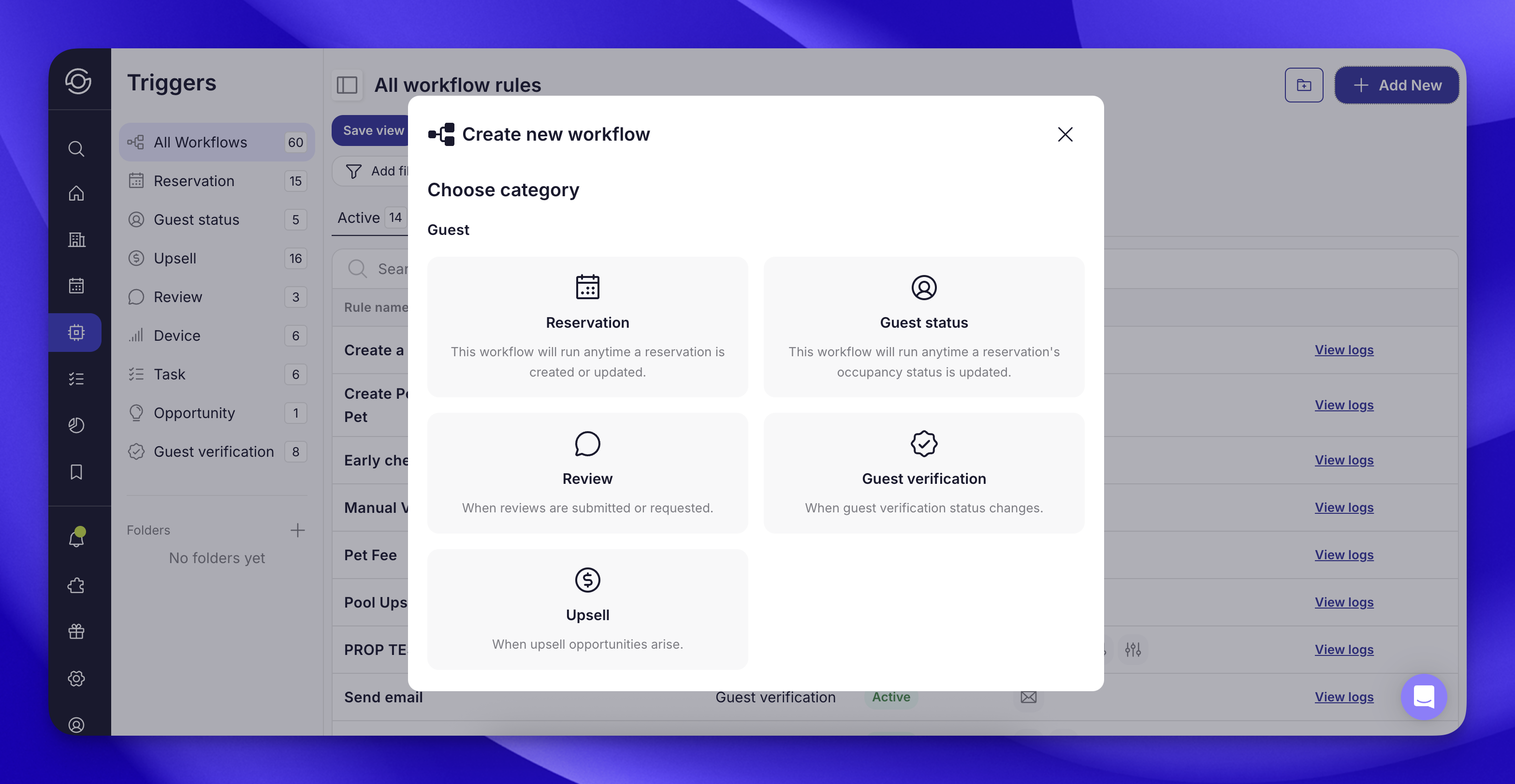
-
Select a Trigger to open the Workflow Canvas
-
Click Add first step or Add trigger to choose a time to run your Workflow
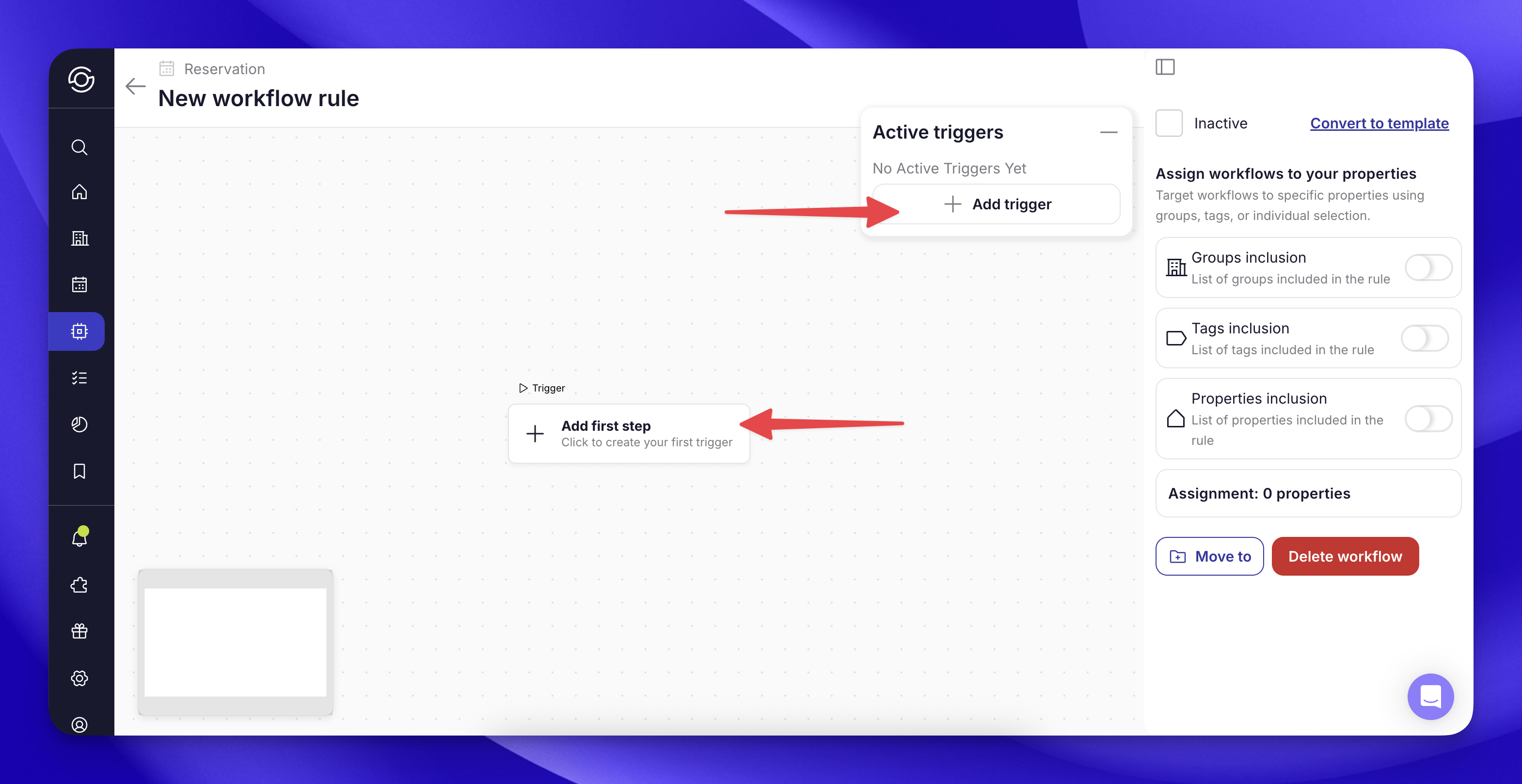
- Once your Trigger is added to the canvas, click the plus sign below to create an action
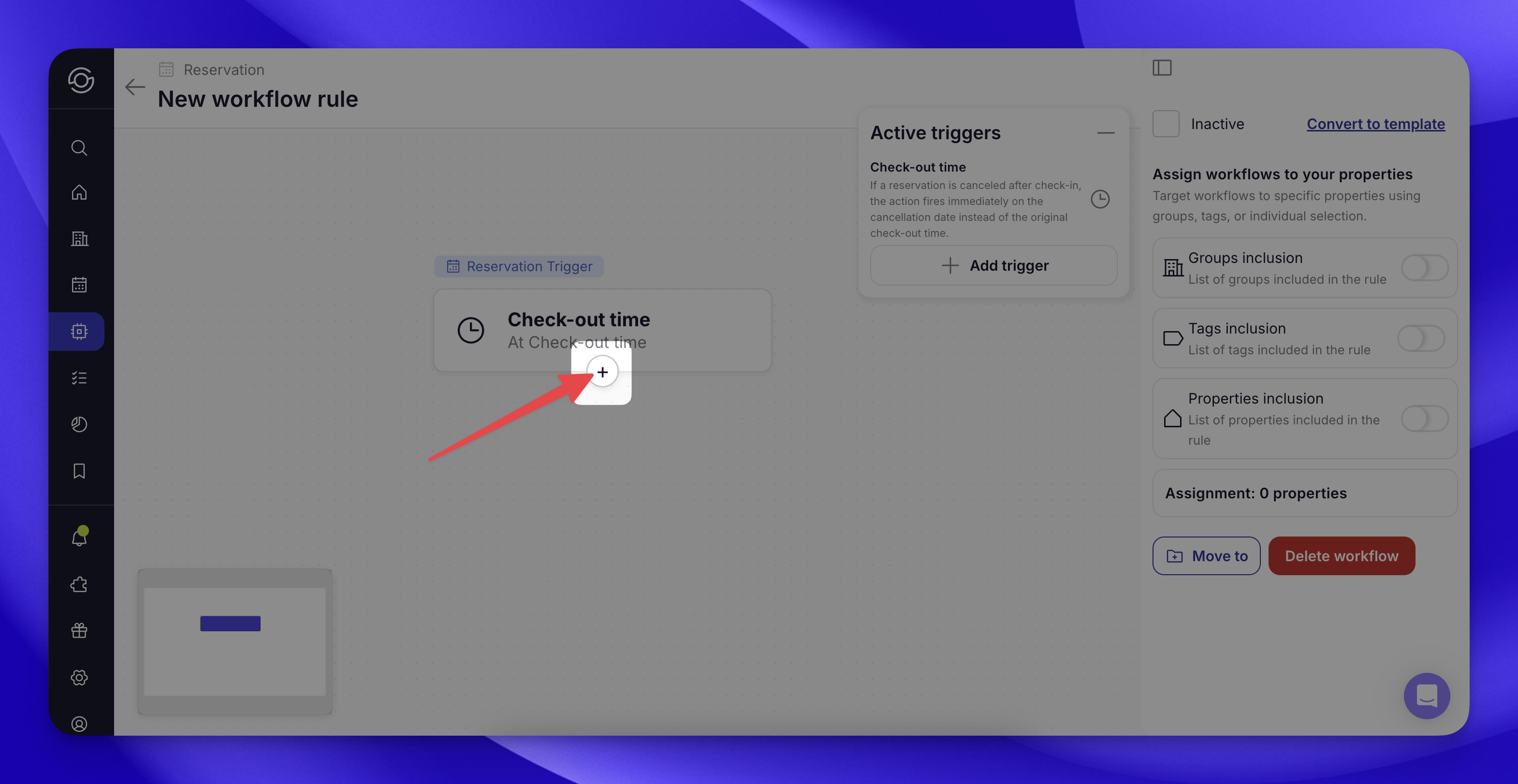
- A list of Actions will appear on the left side, select the action to run at the time of the trigger
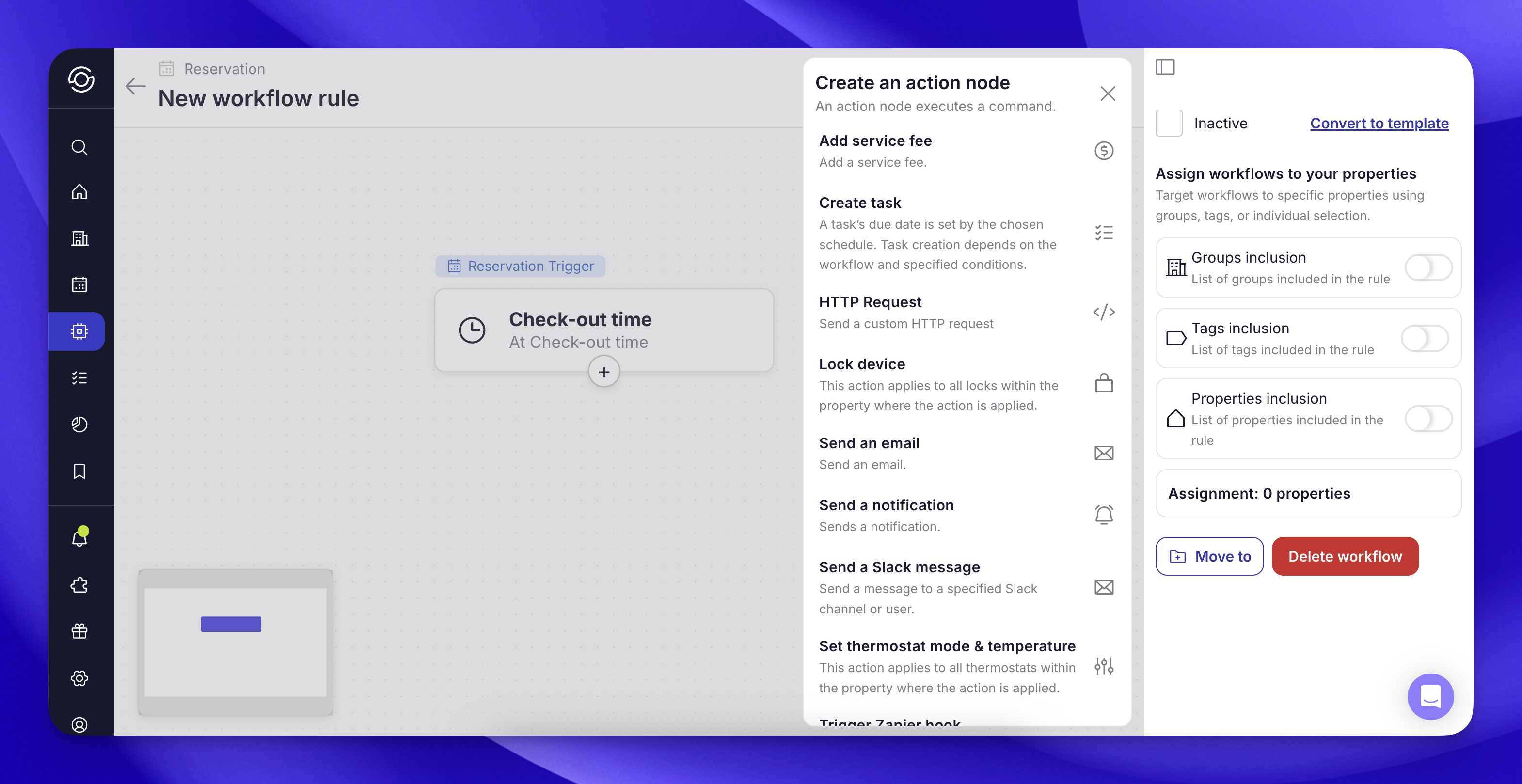
- Configure your Action based on your operations, and save the action by clicking Create
- You’ll see the Action added to the canvas
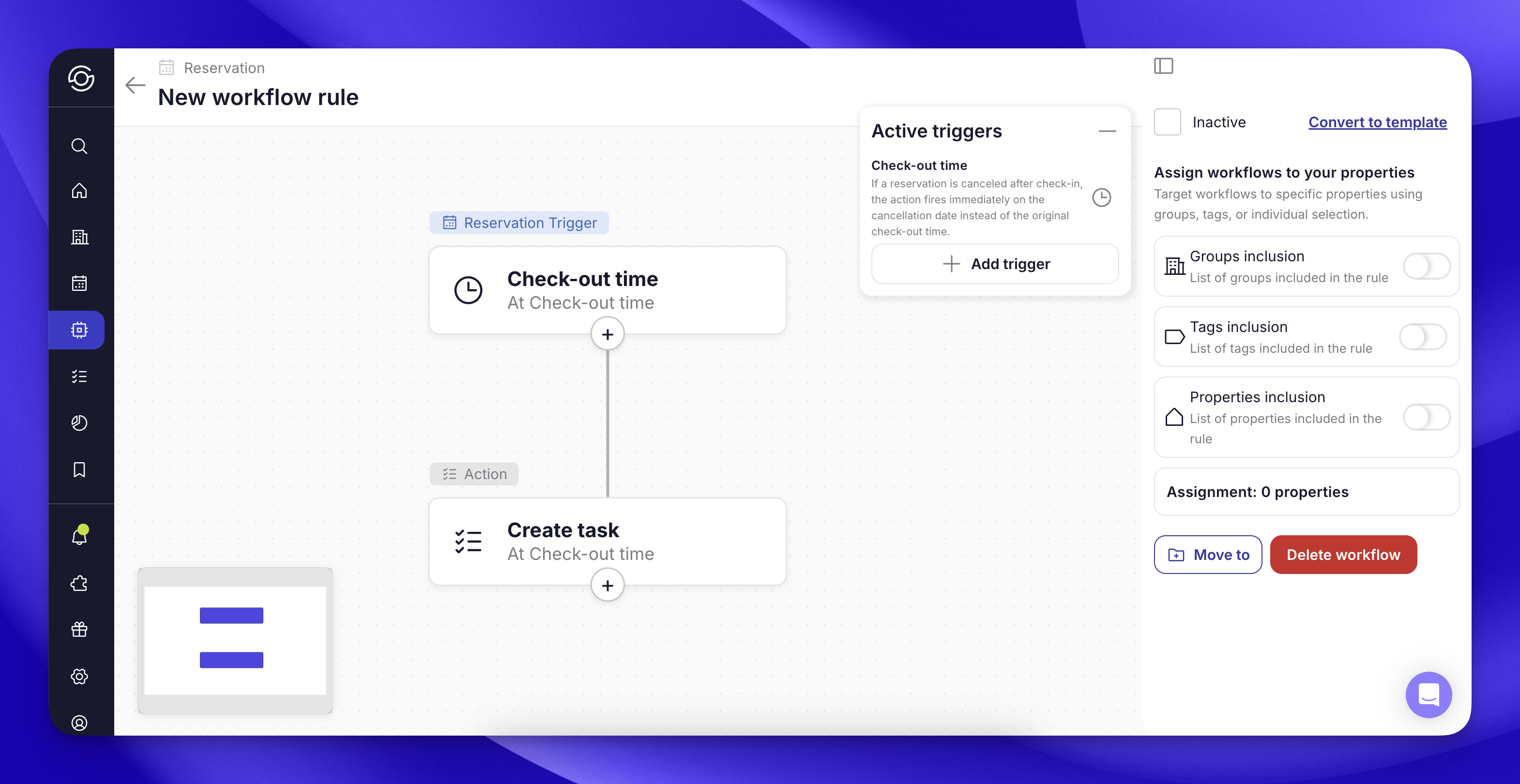
- Assign your Workflow to properties on the right panel
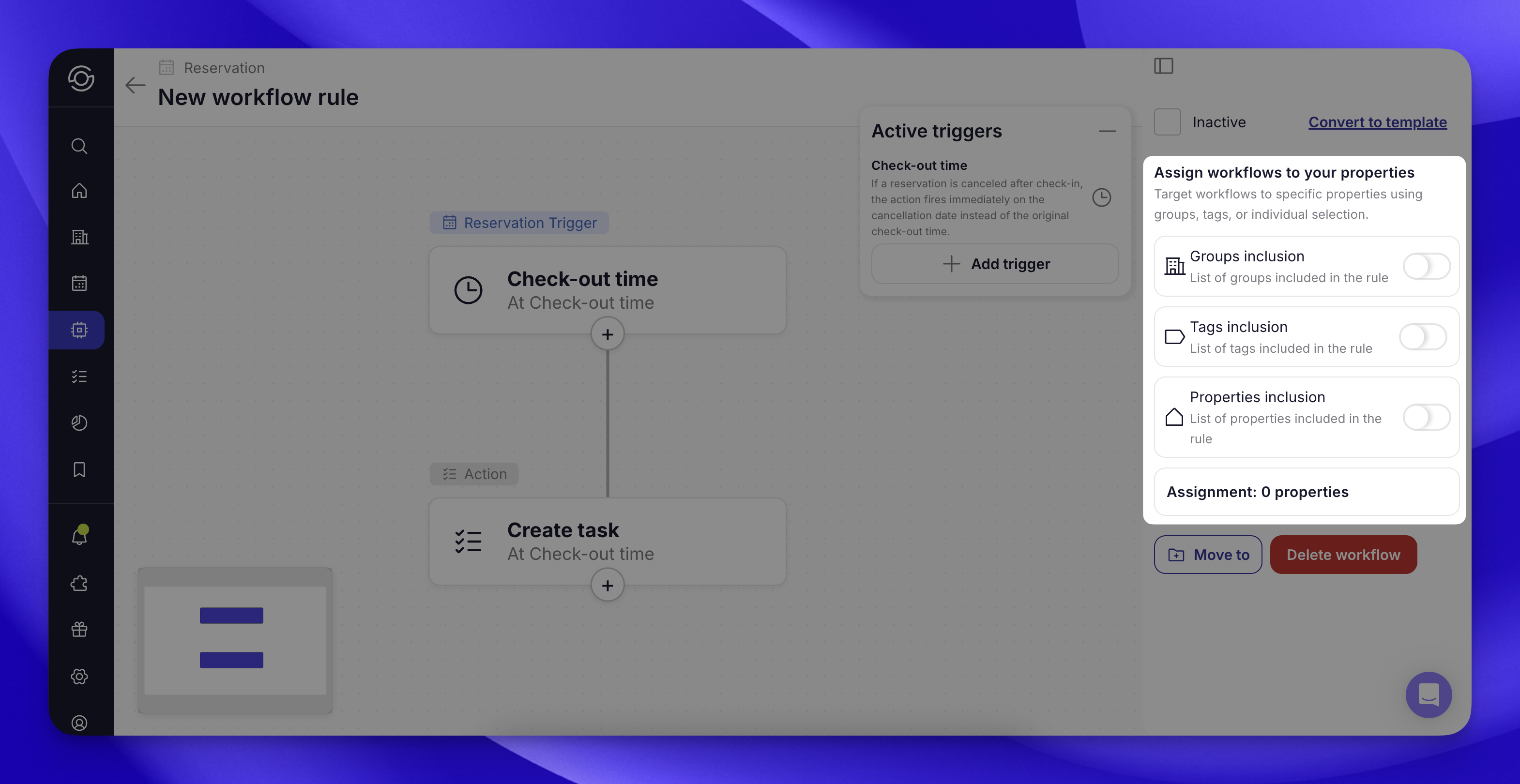
- Click the Activation box above assignment
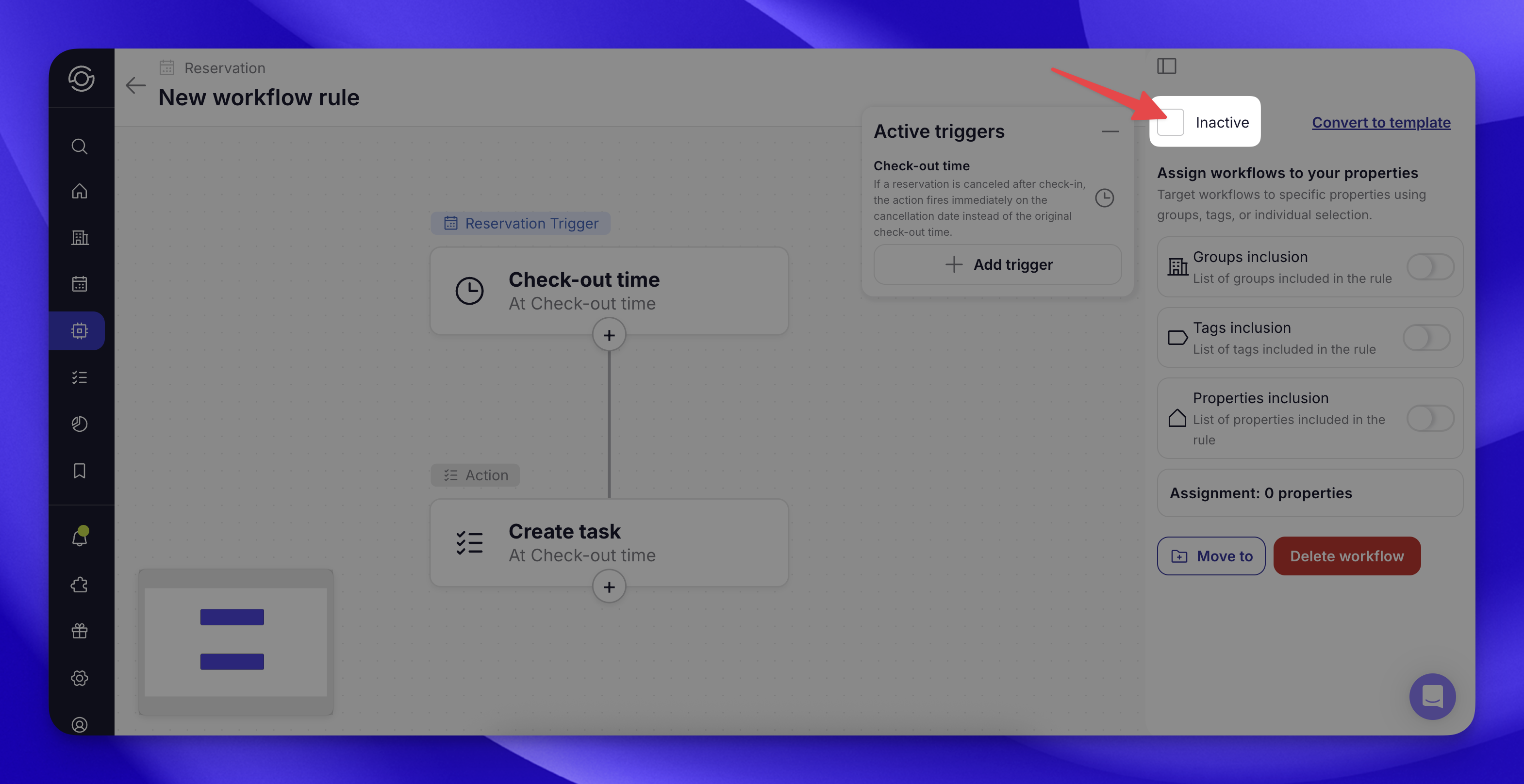
- And give your Workflow a title!
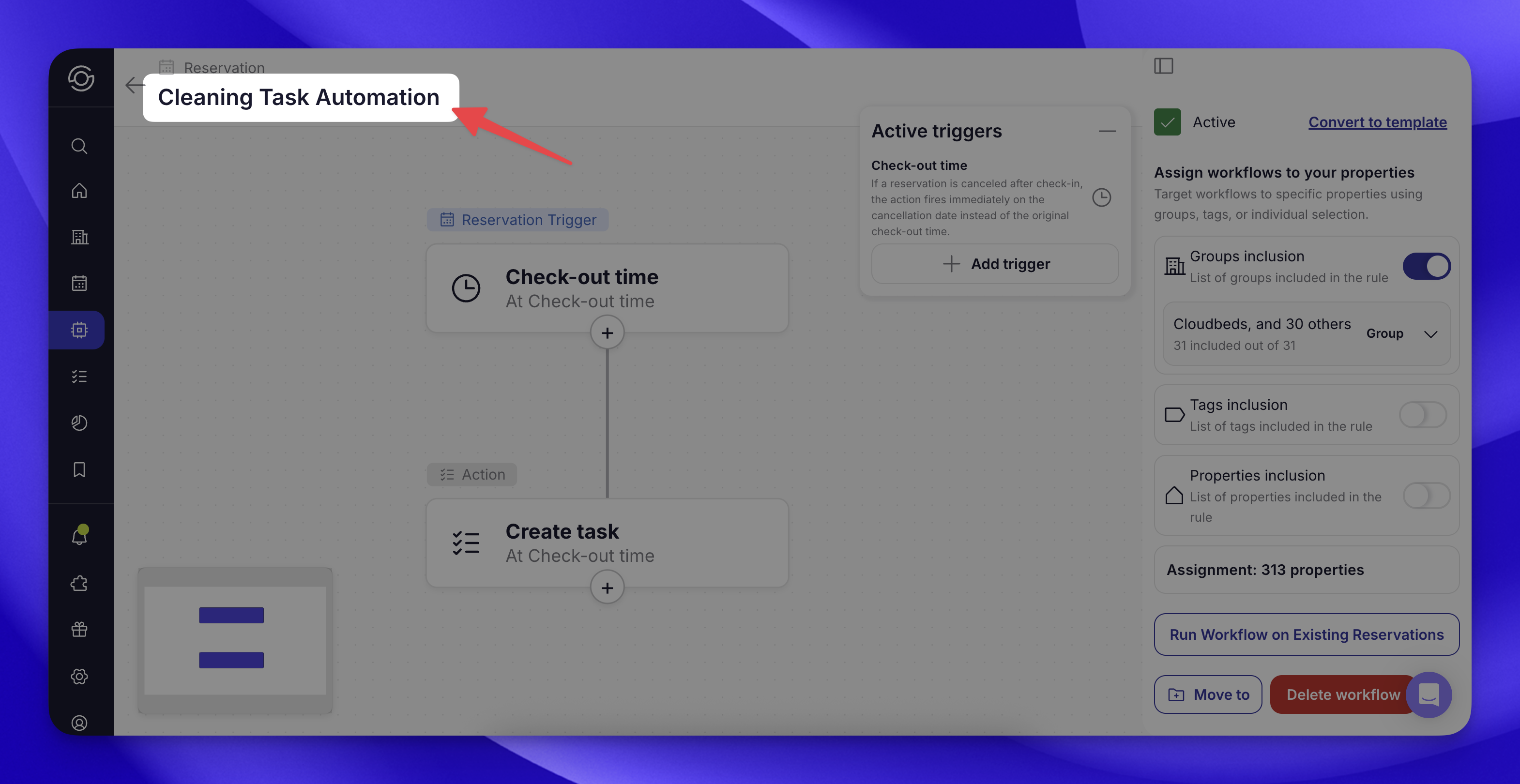
Note: You can have multiple Triggers & Actions in one Workflow canvas!
General settings
-
Active / Inactive checking this box will turn on your workflow
-
Workflow rule name: internal name to keep your workflows organized
-
Workflow trigger what causes your workflow to run
-
Workflow actions: what your workflow does, grouped by when they happen
-
Run on Existing Reservations this will run your workflow on all existing reservations, rather than only new bookings (where applicable)
-
Delete workflow: permanently deletes the workflow
-
Move to Adds to different folder
Assignment settings
-
Assignment type: to include or exclude assignment selections
-
Group inclusion assign by group
-
Tags inclusion assign by tag
-
Properties inclusion assign by property
Triggers
Triggers define what causes your workflow to run. The following are available as triggers:
-
Reservation
-
Guest Status
-
Upsell
-
Review
-
Guest Verification
-
Devices
-
Tasks
-
Opportunities
---
Actions
Actions define what your workflow does. Actions are grouped by when they happen, these times are more specific than the triggers and will change based on your selected trigger. For example if your trigger is Reservation you’ll be able to add actions to Confirmation time, Check-in time, or Check-out time.
The following actions are available:
-
Add service fee
-
Create task
-
HTTP Request
-
Lock device
-
Send an email
-
Send a notification
-
Send a Slack message
-
Set thermostat mode & temperature
-
Trigger Zapier webhook
-
Turn off device
-
Turn on device
Conditions (Filters)
Conditions can be used within a workflow action to further define when the action will apply. You can add multiple conditions to an action. For example, you can set a condition for a task to be created onlyif the reservation length was longer than 7 days, or send a Slack messageonly* for reviews under 4 star from AirBnB booked guests.
The following are some available conditions, these will update based on your chosen trigger & action:
-
Month of the Year
-
Property
-
Property Group
-
Property Tag
-
Reservation Check-in Date
-
Reservation Check-out Date
-
Reservation Length of Stay
-
Reservation Number of Guests
-
Reservation Source
-
Reservation Verification Status
-
Rating Review
-
Rating Source
-
Upsell details
-
& more!
Workflow ideas
Here are some ideas to get you started thinking about the possibilities of workflows!
🔄 Create Task after Reservation Automatically have a task created from an existing template for pool cleaning at the time of check out. Filter properties to apply only for tag is “Pool”.
Settings
Workflow trigger: Reservation** Workflow actions:** Check-out time - Create a task** Conditions:** Property tag is “Pool”** Task templates:**Cleans - Pool cleaning
🔄 Send Slack Notification for Negative Reviews: Send a Slack message to your chosen channel when a guest leaves a survey rating below 5 stars if booking channel was AirBnB. Include the property details, the rating left, and a link to the reservation.
Settings
Workflow trigger: Review** Workflow actions:Submission time - Send a Slack message Conditions:**
-
Reservation Source is AirBnB
-
Review Source is Check-in survey, Check-out survey
-
Review Rating is between 0.0 and 4.0
Slack message template
“{{property_name}} just received a low survey rating of {{review_rating}}. View reservation here {{reservation_deeplink}}.”
🔄 Get Notified for Upsell Requests: Send a custom Slack message to your chosen channel when an Upsell is requested for early check-in.
Settings
Workflow trigger: Upsell** Workflow actions:** Requested time - Send a Slack message** Conditions:** Upsell Item is Early check-in** Slack template:** “Early Check-in request needs your approval:
Property: {{property_name}}
Reservation: {{reservation_deeplink}}
Check-in date: {{check_in_date}}”
Note: You will want to disable any redundant slack notifications in the Integrations page