The Property Readiness Dashboard gives you a clear day-by-day view of properties, their readiness, and how this relates to task scheduling. This dashboard replaces the old task schedule landing page, so when you navigate to** Task Schedule**, you will now arrive here.
⚠️This dashboard only supports a daily view. You cannot select a date range.
Dashboard Filtering

At the top of the dashboard you will see cards that allow you to filter tasks by property status, reservation occupancy, and task departments.
Property Status
- Displays counts of:
All properties (default view)
- Ready
- Not Ready
- Occupied
- These categories are mutually exclusive — selecting one will only show properties in that state.
Reservations
- Displays counts of:
Check-In
- Check-Out
- All Reservations
- Turnovers
- These categories are mutually exclusive — selecting one will only show properties in that state.
Departments
You can filter tasks by department to focus on specific operational areas.
-
Default department groups: Housekeeping
-
Maintenance
-
Inspections
-
Guest Experience
-
Other
-
Sub-departments: Sub-departments are grouped under their parent department.
Example: If you have “Housekeeping Ledger” and “Housekeeping Loft,” you can first filter by Housekeeping and then drill down to the specific sub-department.
Each department card shows:
-
Total task counts for the day
-
Breakdown by task status (e.g., due, completed, outstanding)
How Task Counts Are Calculated
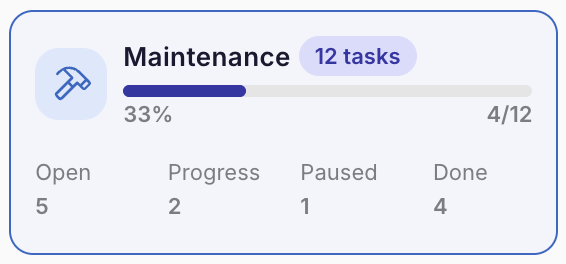
Task counts shown on the dashboard follow this logic:
-
Included: Any task due that day
-
Any task completed that day
-
All outstanding maintenance tasks (remain visible until completed)
-
Special case: If a task was overdue but completed that day, it will** still count** toward that day’s total.
This ensures you always see an accurate reflection of operational workload and progress.
Property Table
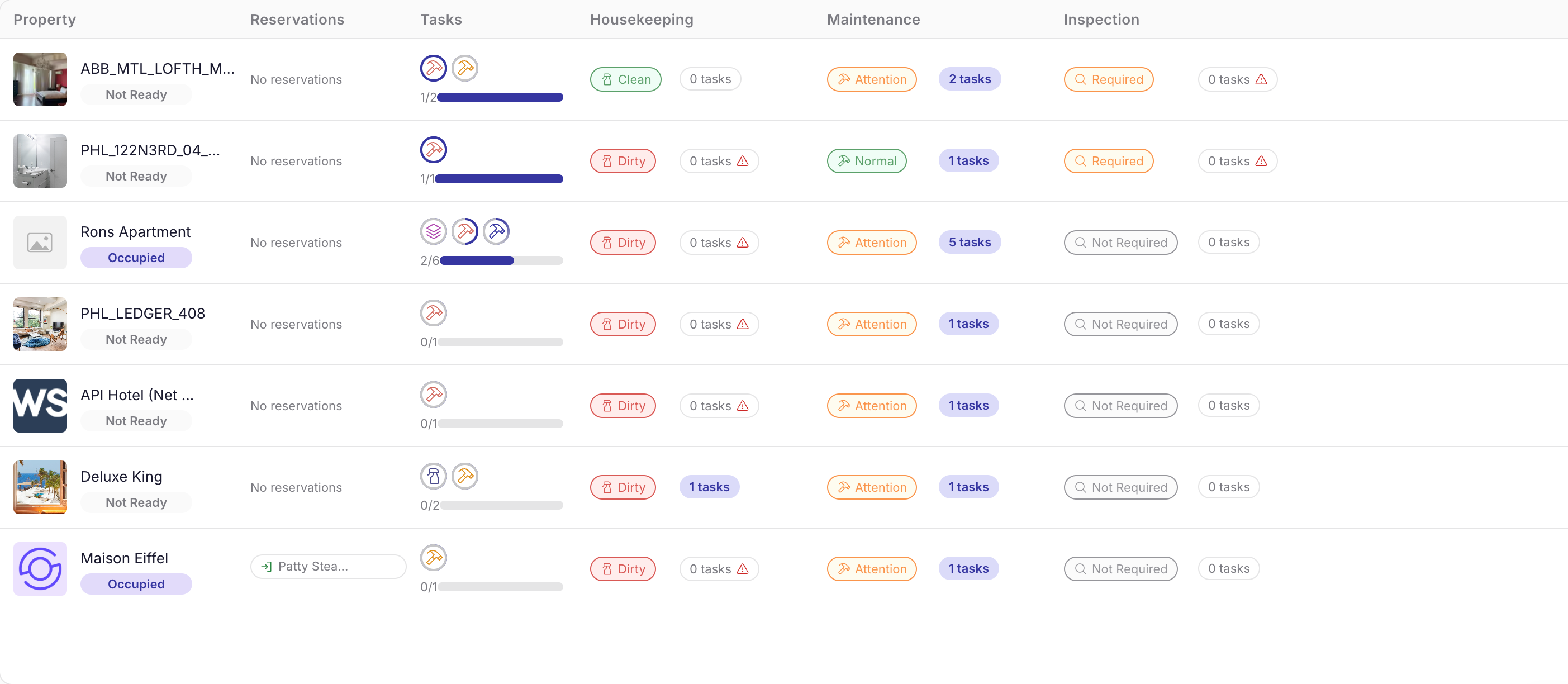 At the bottom of the dashboard, you’ll see a property table.
- Each row represents a single property
- Columns include:
Property status
-
Task counts by department
-
Department-level statuses
You can interact with the table by clicking on any clickable area. This will open a** side panel** displaying the full list of tasks for that property, making it easy to review and take action.
With the Property Readiness Dashboard, you get a daily, department-focused view that connects property status, reservations, and task management in one place.