If your guest’s portal link is not working, this could be a sign the reservation is not imported into SuiteOp yet! If you notice a missing a reservation from your PMS in SuiteOp you can easily pull the latest data for that specific reservation into your Reservations list. Follow the below steps.
Step 1: Find the relevant ID
SuiteOp uses a specific ID field from each PMS to find reservations. This is not always the “reservation ID”. This is usually found in the reservation URL. Use the following table to understand where your ID can be found.
| PMS | ** Where to find the reservation ID** | ** Screenshot** |
|---|---|---|
| Hostaway | Open the reservation in Hostaway, the ID will be the string of numbers in the URL. |
This is also referred to as the Hostaway reservation ID in the reservation details. | 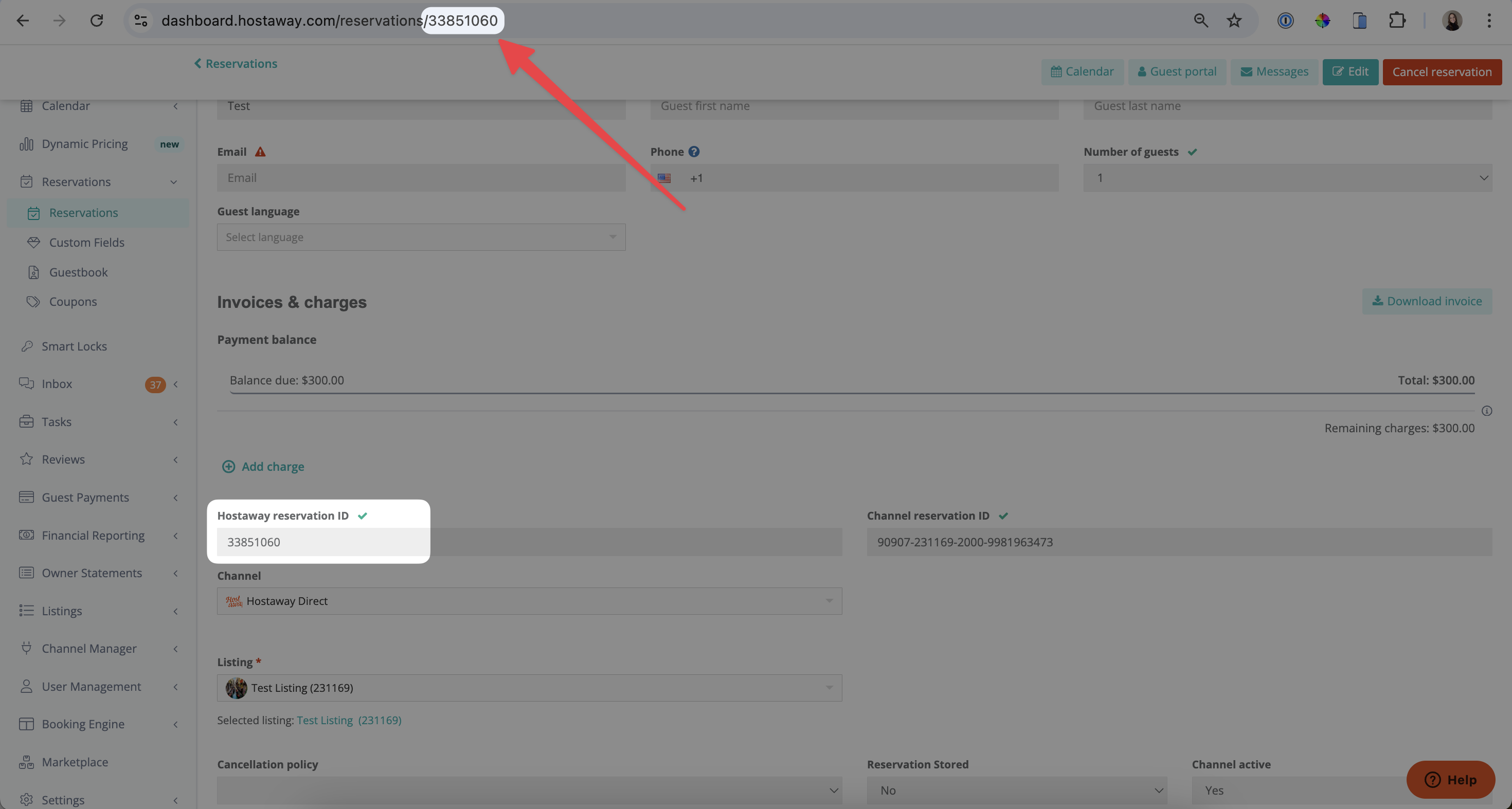 |
| OwnerRez | Open the reservation in OwnerRez. The ID will be the reservation ID, not including the ORB. The number can be found in the URL of the reservation. |
|
| OwnerRez | Open the reservation in OwnerRez. The ID will be the reservation ID, not including the ORB. The number can be found in the URL of the reservation. | 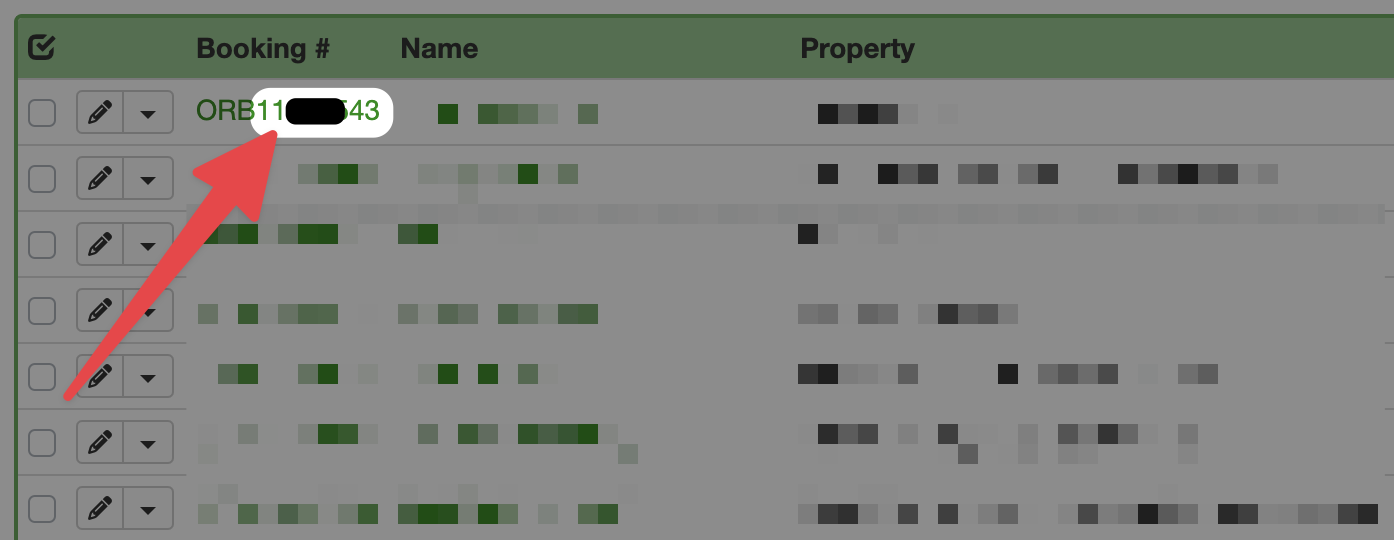 |
| Guesty | Open the reservation in Guesty, the ID will be found in the URL after reservations/. It is a string of numbers and letters. |
|
| Guesty | Open the reservation in Guesty, the ID will be found in the URL after reservations/. It is a string of numbers and letters. | 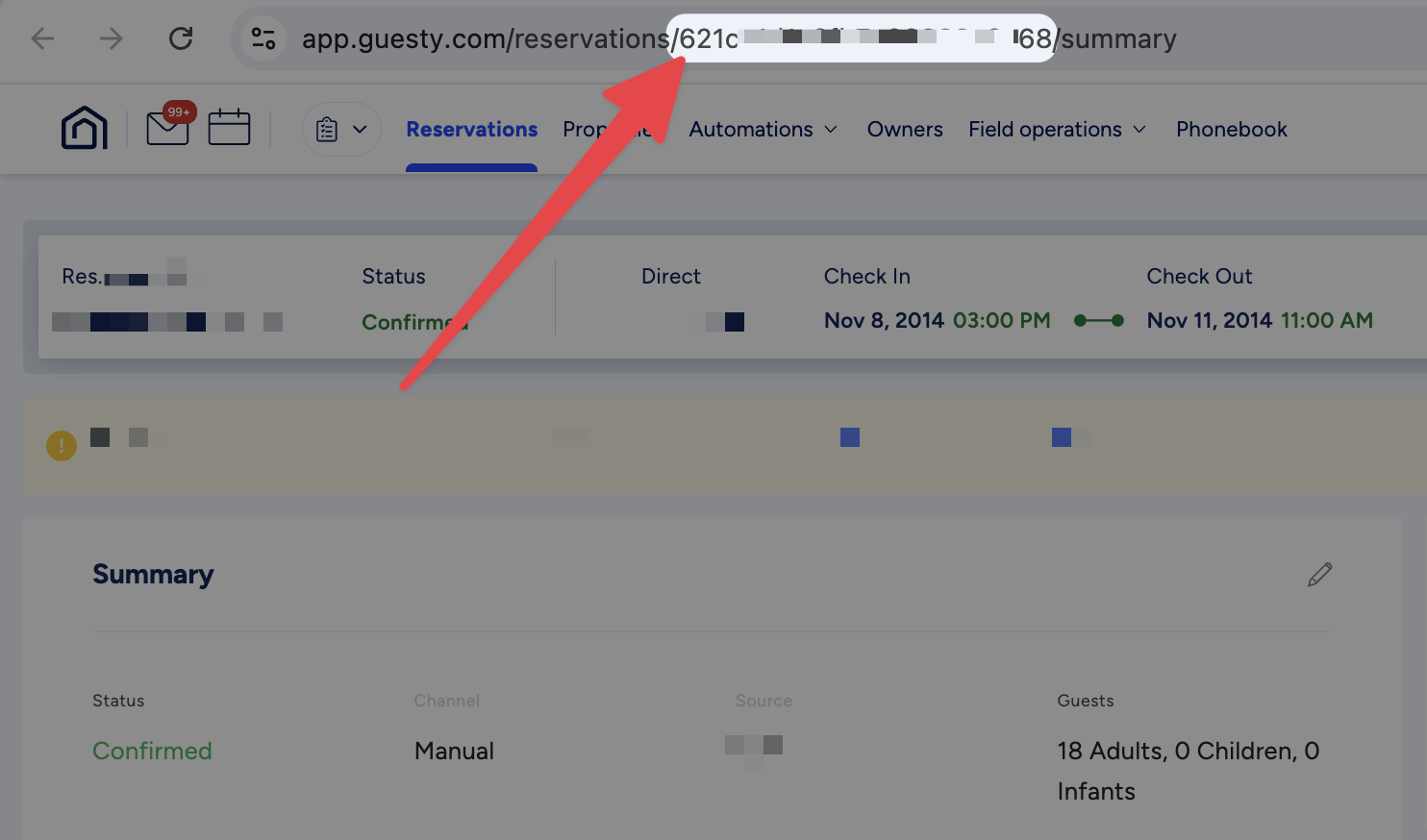 |
| Uplisting | Open the reservation. The ID will be the Uplisting ID found at the bottom left of the reservation panel, also shown in the URL. |
|
| Uplisting | Open the reservation. The ID will be the Uplisting ID found at the bottom left of the reservation panel, also shown in the URL. | 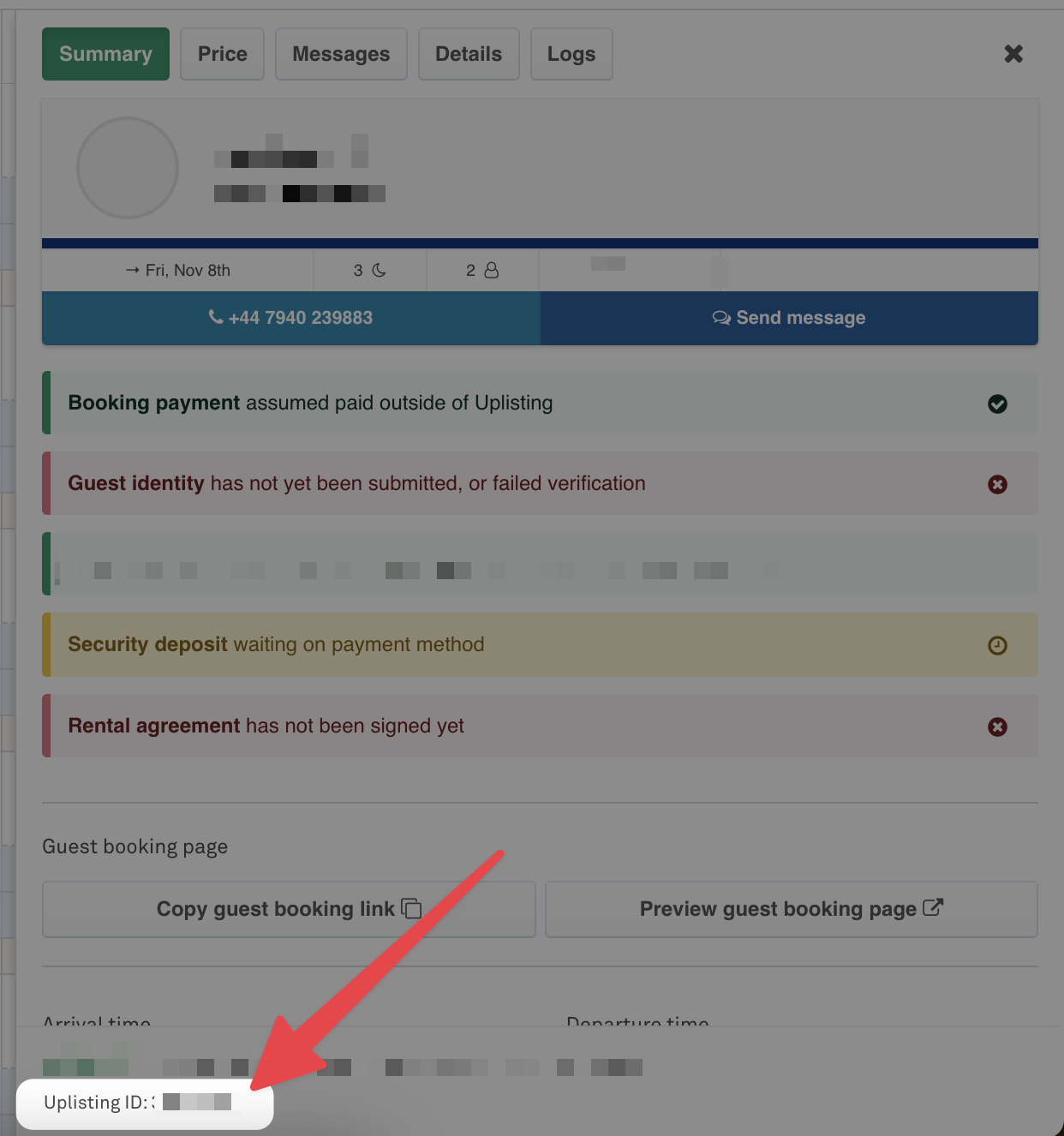 |
| Hostfully | Open the reservation and go to the Data tab, the ID will be the UID. You can click the copy icon to copy this for Step 2. |
|
| Hostfully | Open the reservation and go to the Data tab, the ID will be the UID. You can click the copy icon to copy this for Step 2. | 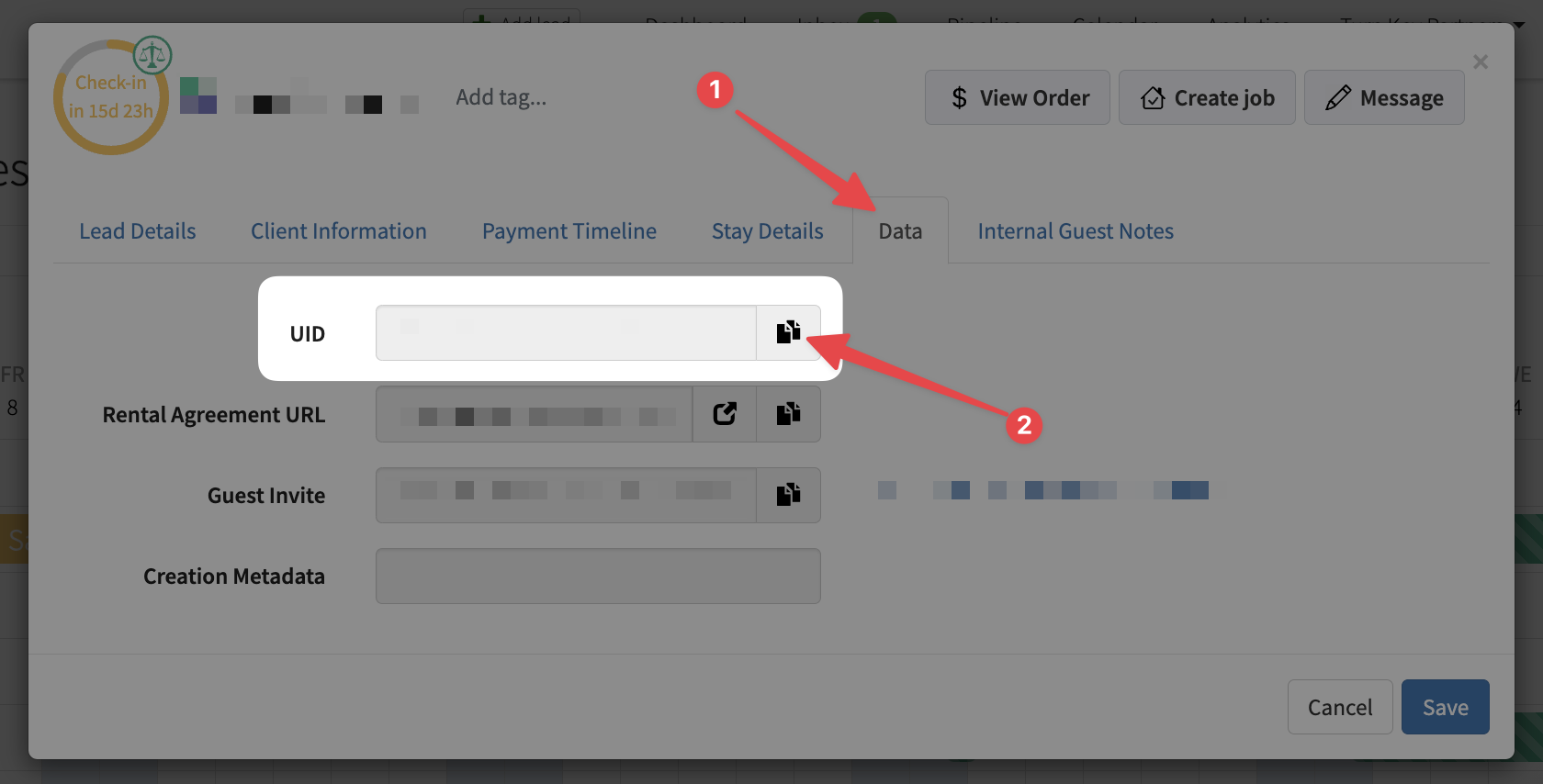 |
| Other | Open the reservation in your PMS. Look for an ID in URL, if there is no ID in the URL look for an ID in the reservation details. This won’t be the booking channel ID. | |
|
| Other | Open the reservation in your PMS. Look for an ID in URL, if there is no ID in the URL look for an ID in the reservation details. This won’t be the booking channel ID. | |
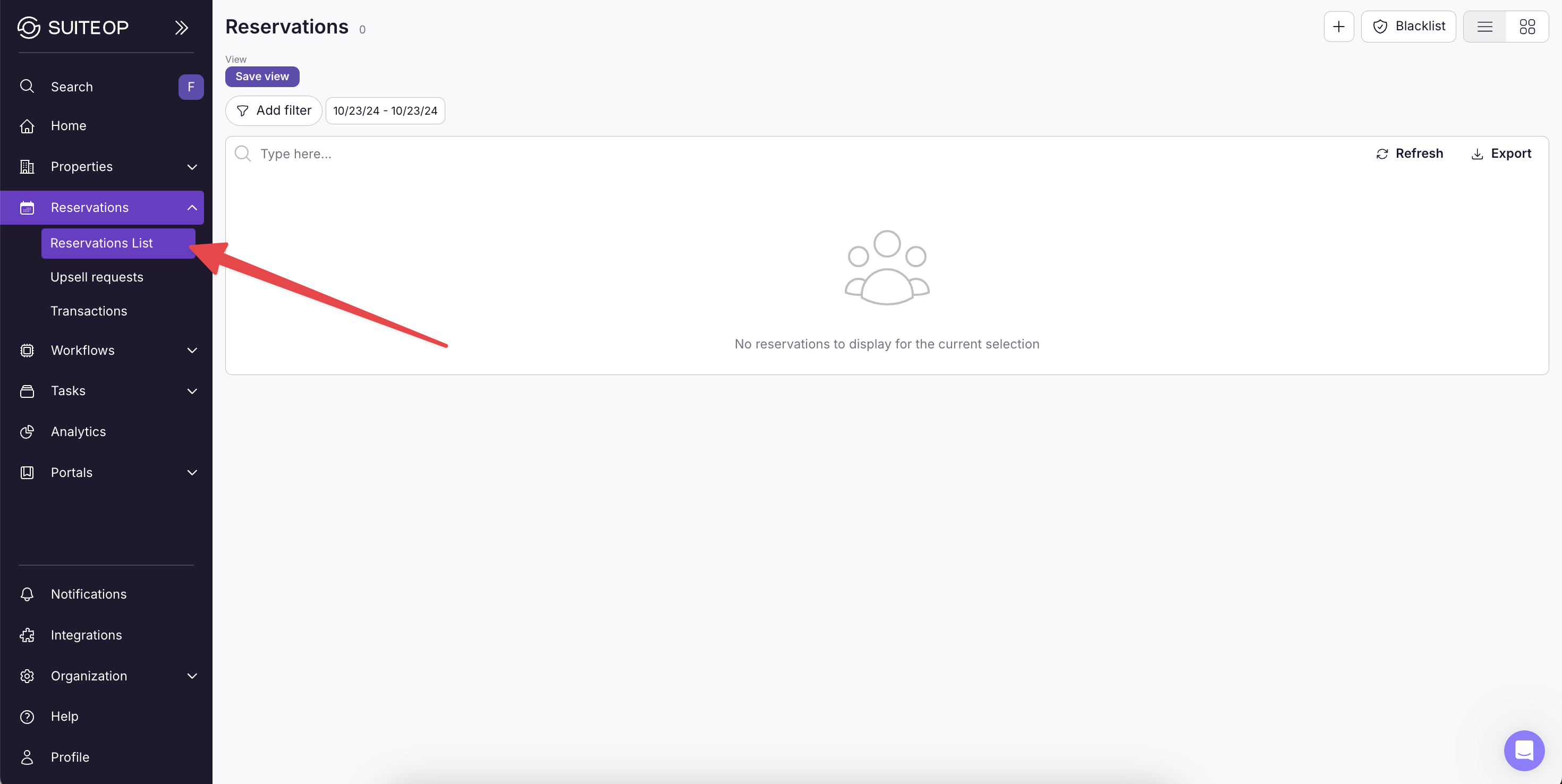
Step 2: Go to the Reservations page in SuiteOp
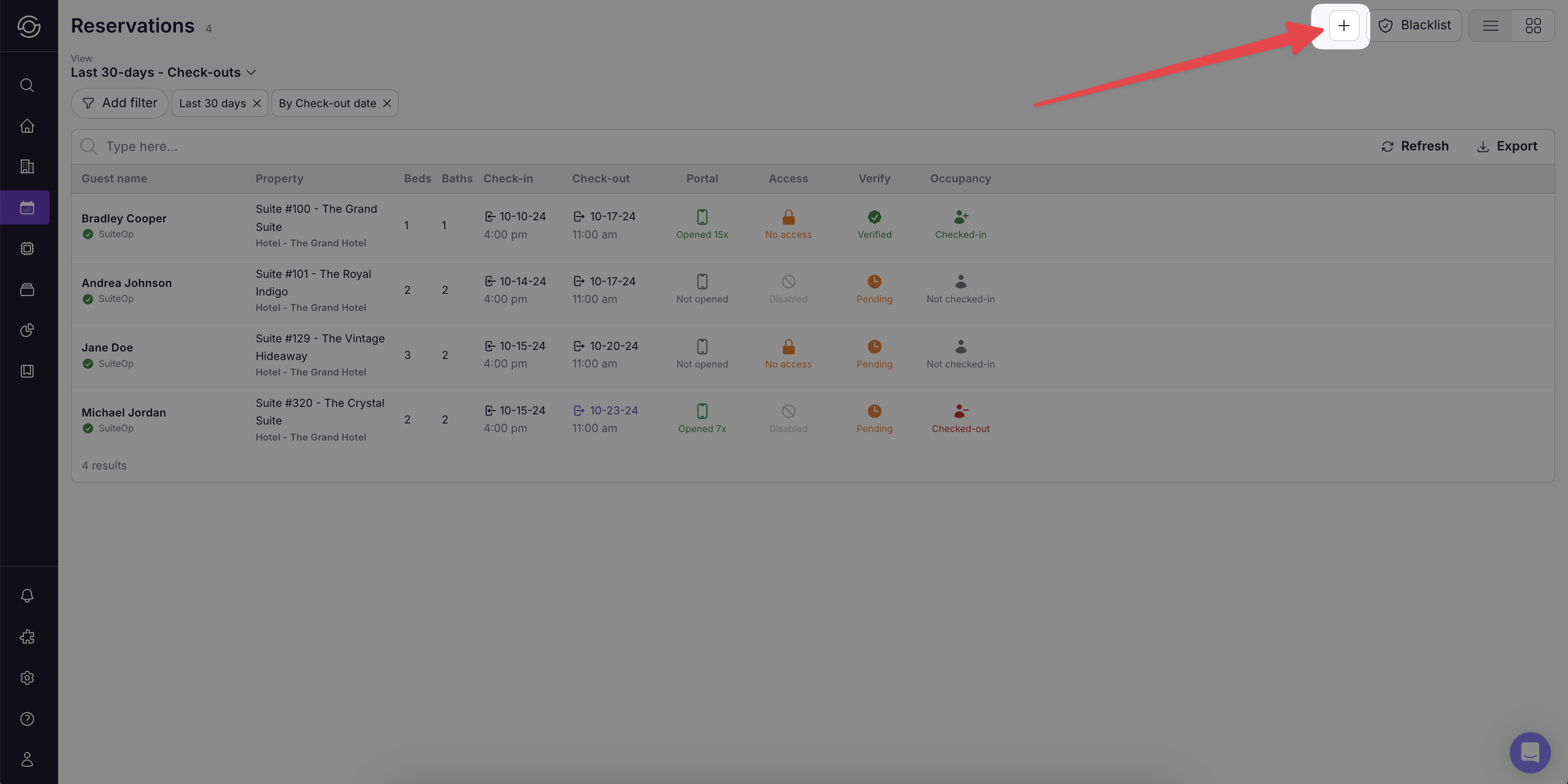
Step 3: Click the + in the top right corner
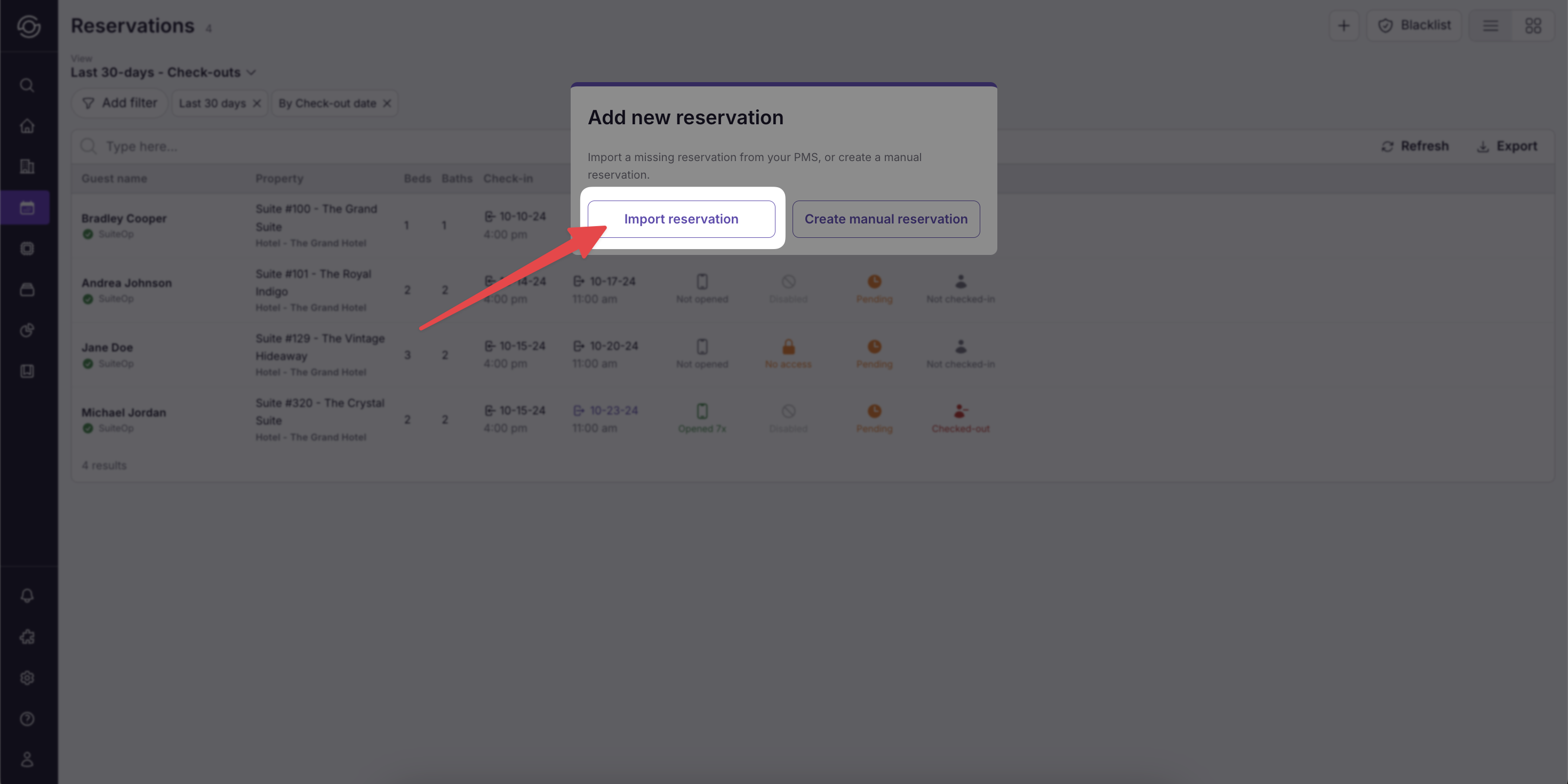
Step 4: Select “Import reservation”
Step 5: Paste the ID from your PMS (Step 1) in the reservation ID field
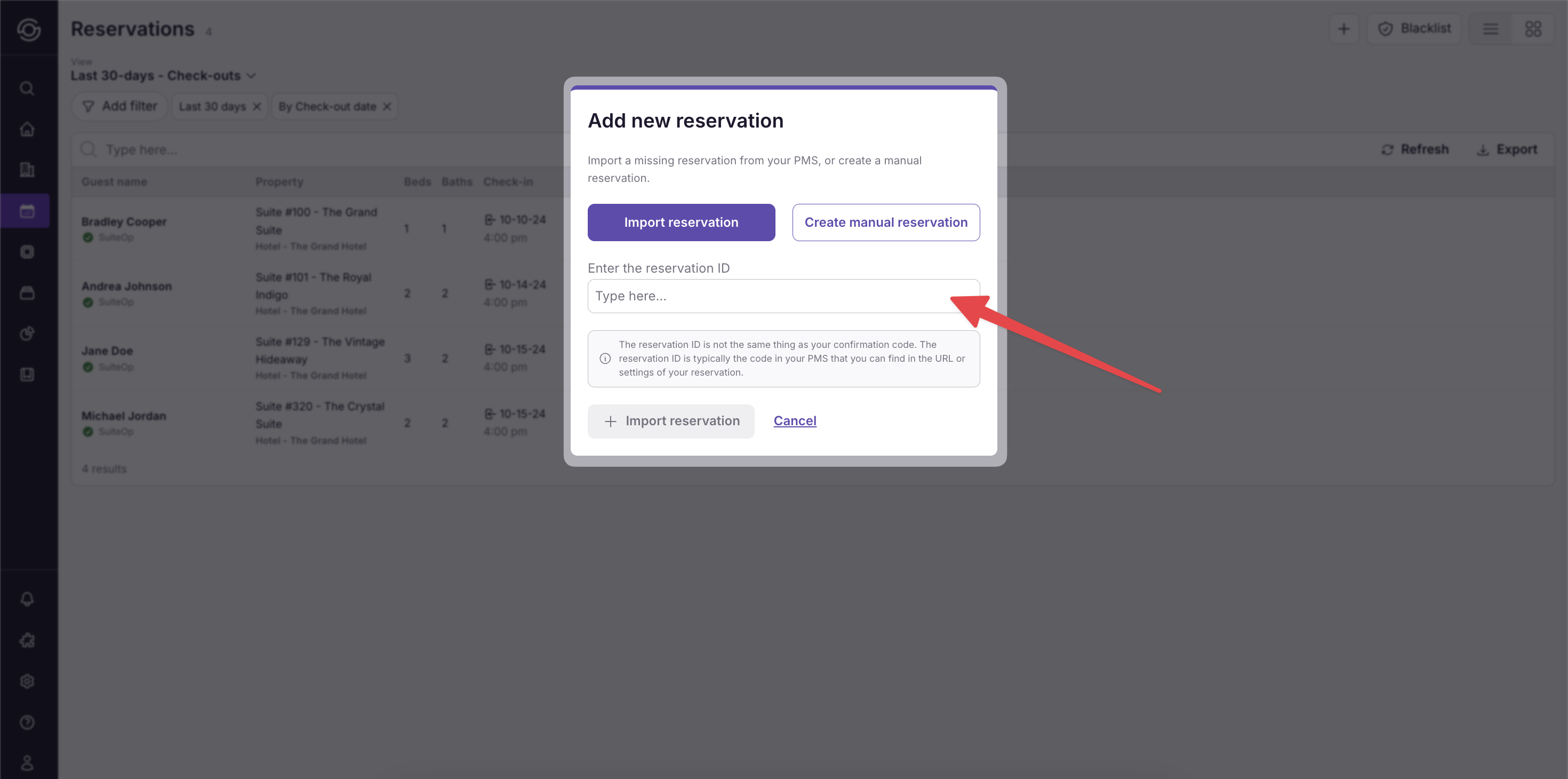
Step 6: Click “Import reservation”
Now you should see the missing reservation in your Reservations list!