Overview
Backup codes are pre-configured access codes that automatically replace failed guest codes—no manual intervention needed.
Two ways codes get replaced:
-
Automated replacement - When a code fails after check-in and multiple install attempts have been made, the system automatically offers guests a working backup code
-
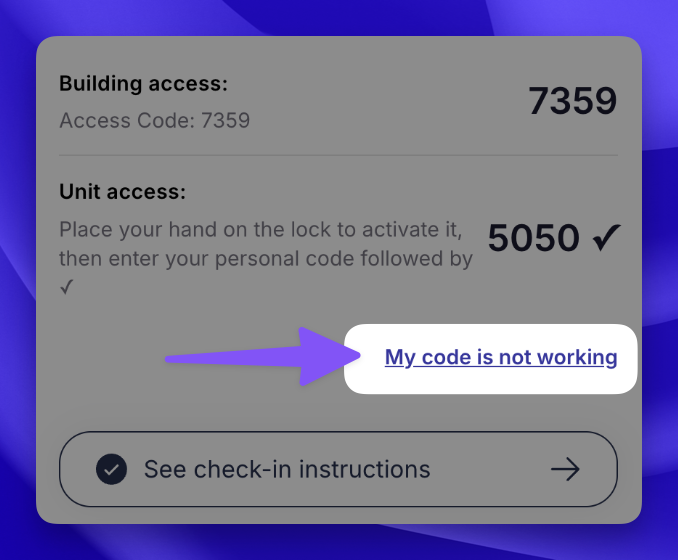
Guest-initiated replacement - Guests can click “My code is not working” in their portal (after check-in time) to swap to a backup code themselves
Each lock maintains at least three active backup codes at all times, ready to use when needed.
Property Manager View
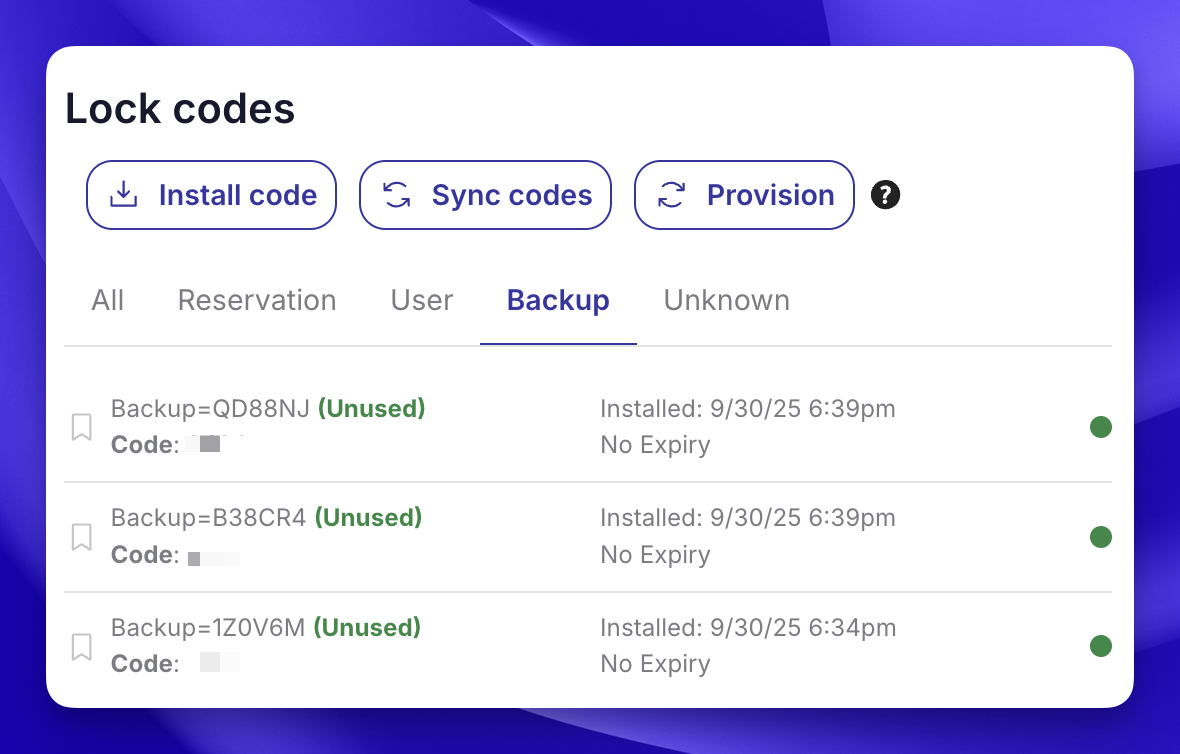
In your lock in SuiteOp you will now see 3 “Unused” backup codes at all times. These are used as the replacement codes should a reservation code not activate at check-in.
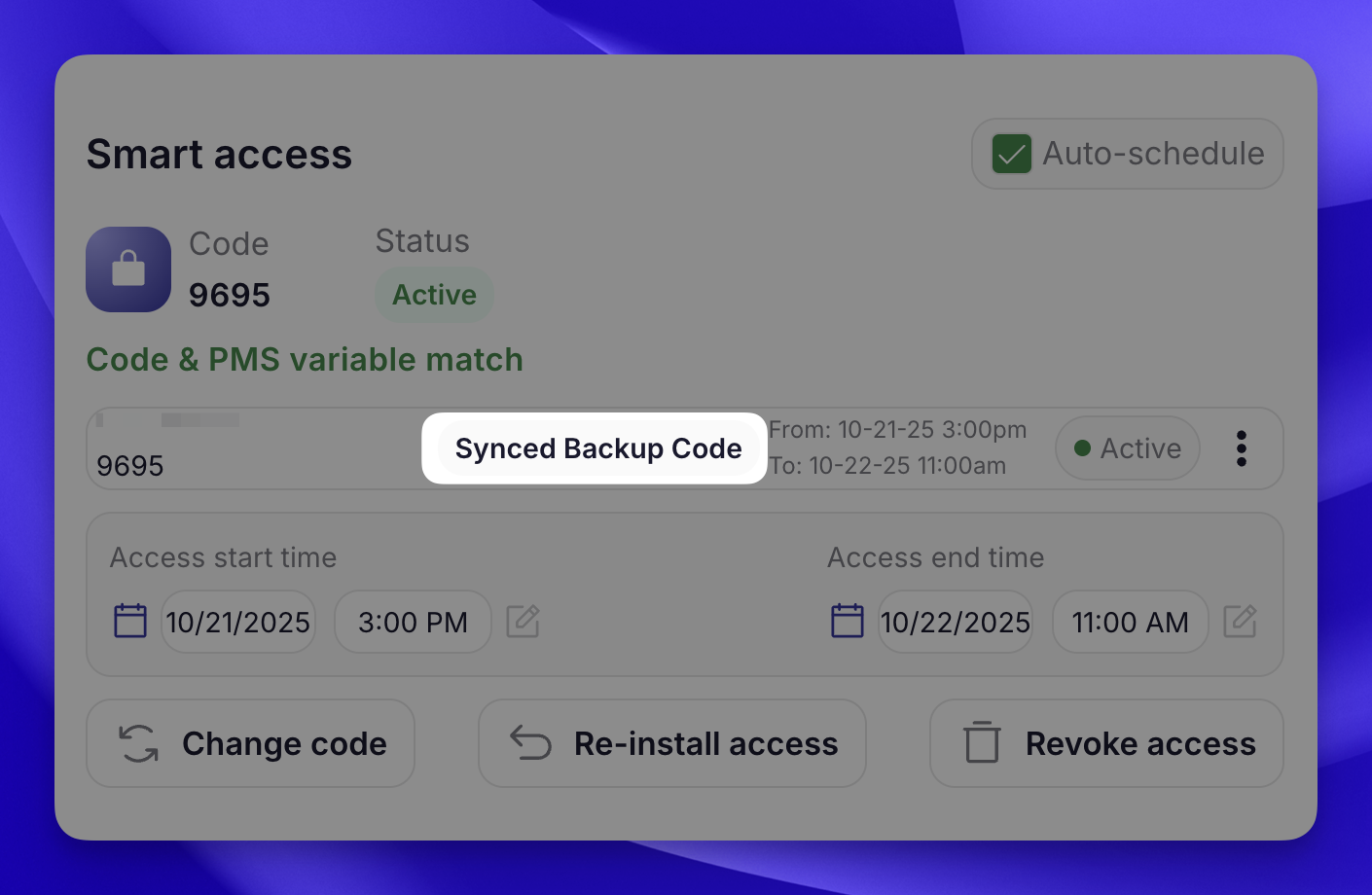
If a backup code is used on a reservation, either automatically or by guest request, you’ll see the new code in the Smart access section with the label “Synced Backup Code”:
Guest View
Guests receive backup codes in two ways—both happen automatically after check-in time:
- System detects the problem
-
Guest’s code fails
-
System automatically offers a swap to a backup code
-
Guest accepts and receives new code instantly
- Guest reports the problem
-
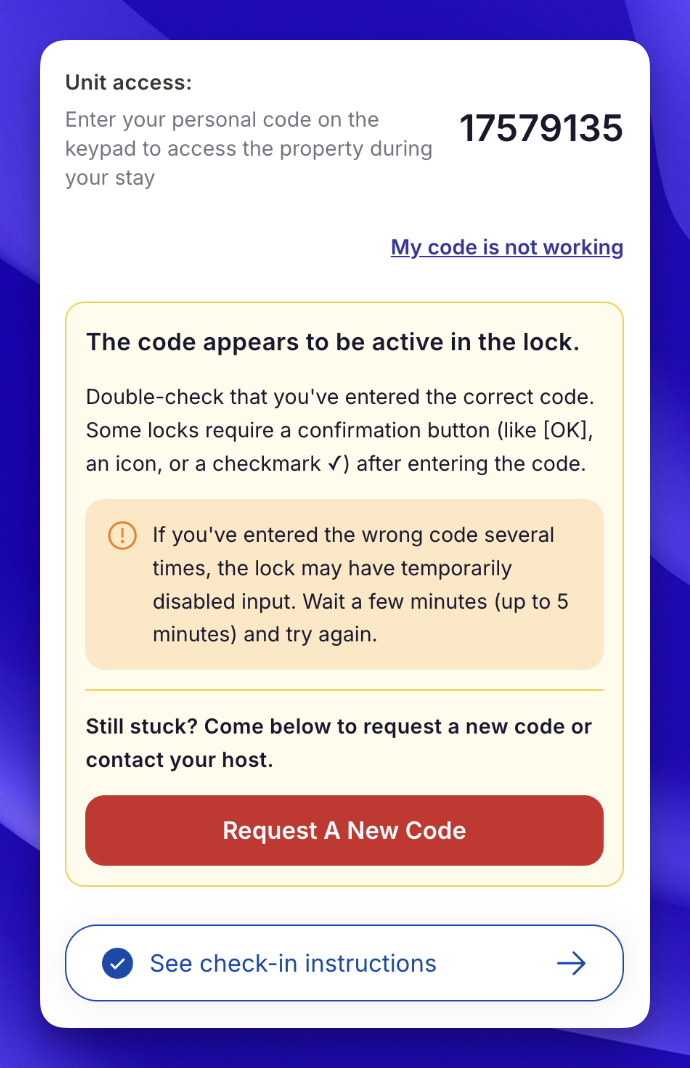
Guest clicks “My code is not working” in their portal
-
System shows their codes (highlights any with “Failed” status)
-
Guest selects the problematic code
-
System swaps to backup code instantly
-
New code displays
Additional Details
Assigning to Reservations
If a guest’s code fails, you can manually assign a backup code:
From Lock Settings:
-
Click Manage Backup Code
-
Select Share code > Reservation
-
Choose the reservation
-
Click Confirm
From Reservation Details:
-
Go to the reservation with the failed code
-
Scroll to the** Smart Access** section
-
Disable Auto-schedule using the check box on the right
-
Click Import code
-
Click Select from Backup Code
-
Choose the lock and backup code
-
Click Assign CodeNote: In most cases, the system handles this automatically—you only need to intervene if automated replacement doesn’t resolve the issue.
Controlling Shareability
-
Manually created codes - Not shareable with reservations by default (prevents contractor codes from going to guests)
-
Auto-provisioned codes - Shareable with reservations by default
You can toggle shareability for any code in the Manage Backup Code menu.
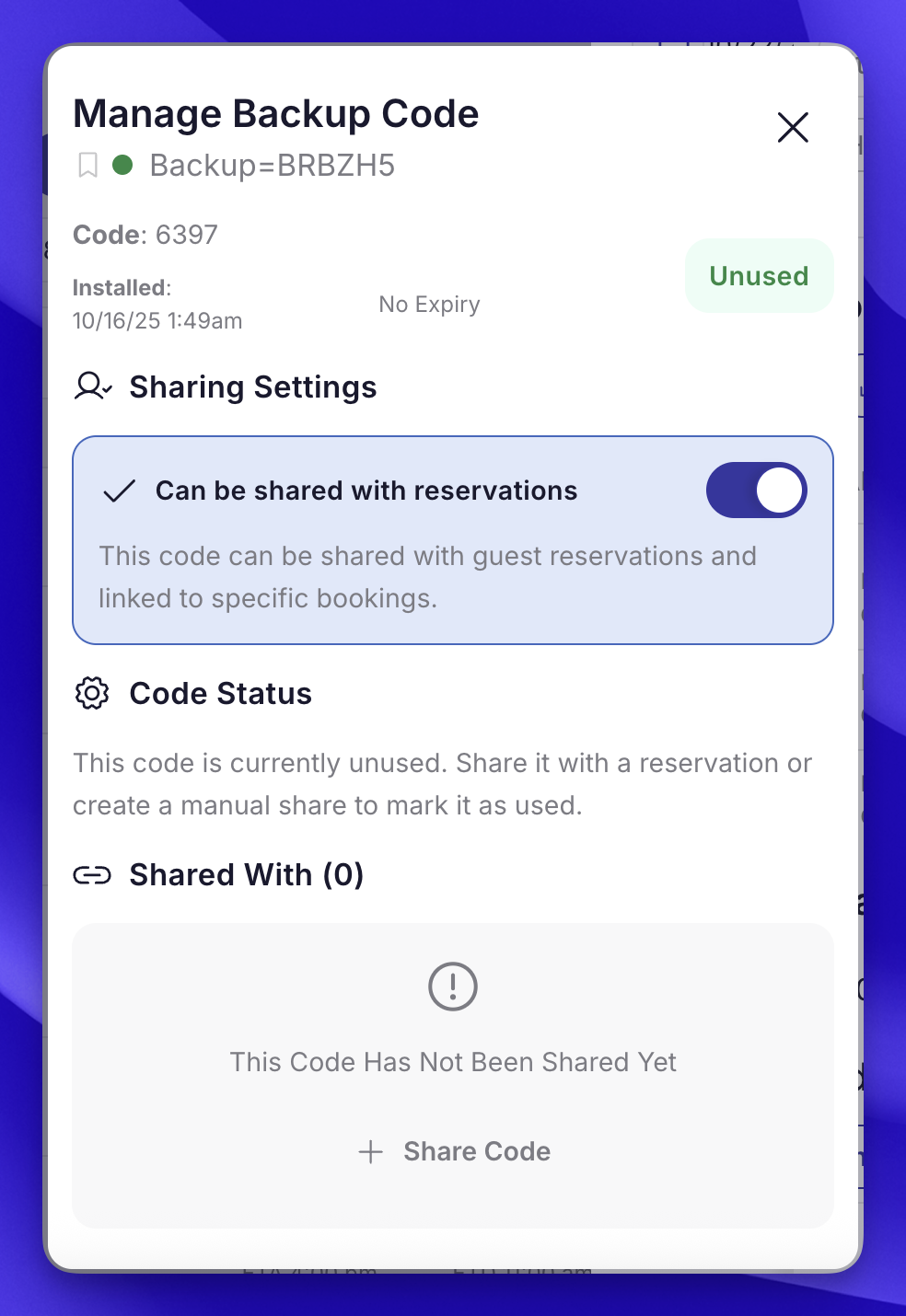
Sharing with Contractors or Staff
Need to give temporary access to a contractor or cleaning crew?
-
Click Manage Backup Code
-
Select Share Code >** Manual Share**
-
Add a note (e.g., “Contractor - John Smith”)
-
Set an expiration date
-
Click Confirm The code will automatically expire after the date you set.
When Self-Service Isn’t Available
The “My code is not working” button disappears when:
-
All codes have been switched to backup codes
-
Codes were just changed and need time to sync
-
Prior to check-in time the button will display, but not allow a change request
At this point, guests should contact you directly.
How Backup Codes Are Maintained
Daily automated maintenance:
-
Top-up - If a device has fewer than 3 active, unused backup codes, the system creates exactly the number needed to reach 3 (creation happens before deletion)
-
Cleanup - Used backup codes are removed only when their expiration date passes. Expiration is determined by the latest of:
Manual share expiration dates
-
Checkout dates of linked reservations
-
Safety checks - Backup codes that aren’t “Active” 48 hours after installation attempt are automatically deleted** Key principles:**
-
New backups are always created before any deletions
-
Inventory never drops below three codes
-
Daily cycle is safe to run repeatedly and only acts when needed
Automated Replacement Triggers
The system automatically offers backup code replacement when ALL criteria are met:
-
Code status changes to “Failed”
-
Reservation’s check-in time has passed
-
Multiple installation attempts have already been made
-
An unused backup code is available for the device
Guest-Initiated Replacement Requirements
Guests can request replacement when:
-
Current time is after the reservation’s check-in time
-
The code is associated with an online-connected lock
-
The code hasn’t been recently changed
-
The code is not already a backup code
Code Eligibility Rules
Eligible for replacement:
-
Codes with “Failed” status
-
Codes on online-connected locks
-
Codes that haven’t been recently changed
-
Codes after check-in time has passed
NOT eligible for replacement:
-
Backup codes already active (pre-tested and verified)
-
Codes for offline locks (can’t receive remote updates)
-
Codes before check-in time (time-gated protection)
-
Recently changed codes (need sync time)
Multi-Code Handling
When a reservation has multiple locks:
-
Automated flow can replace all failed codes simultaneously
-
Guest-initiated flow allows sequential replacement of each eligible code
-
System auto-selects if only one code is eligible
-
“My code is not working” button hides when all codes are resolved
Shareability Defaults and Controls
Default settings:
-
Manually created backup codes: NOT shareable with reservations
-
Automatically provisioned codes: Shareable with reservations
Toggle restrictions:
-
Cannot disable shareability while code is assigned to active reservations
-
Prevents accidental removal of codes guests are using
When Property Managers Should Intervene
The system handles most failures automatically, but manual intervention is needed when:
-
Guest contacts you after exhausting self-service options
-
Multiple codes failing for same property (potential lock malfunction)
-
Lock shows offline and guest cannot access
-
Replacement backup code also fails
-
Patterns of failures across multiple reservations indicate systemic issues
Troubleshooting steps: Refer to Troubleshooting Smart Locks article for detailed support procedures.