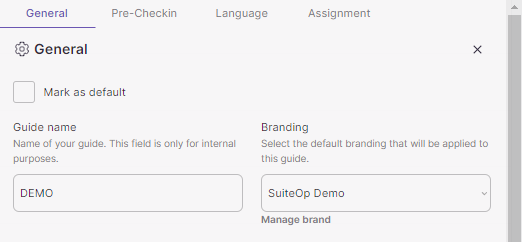
Brands in SuiteOp allows you to customize colors, logos, and other brand identity elements for different portals and URLs. This is beneficial for hotels or property subgroups with specific branding requirements.
Step 1 - Create a Brand
-
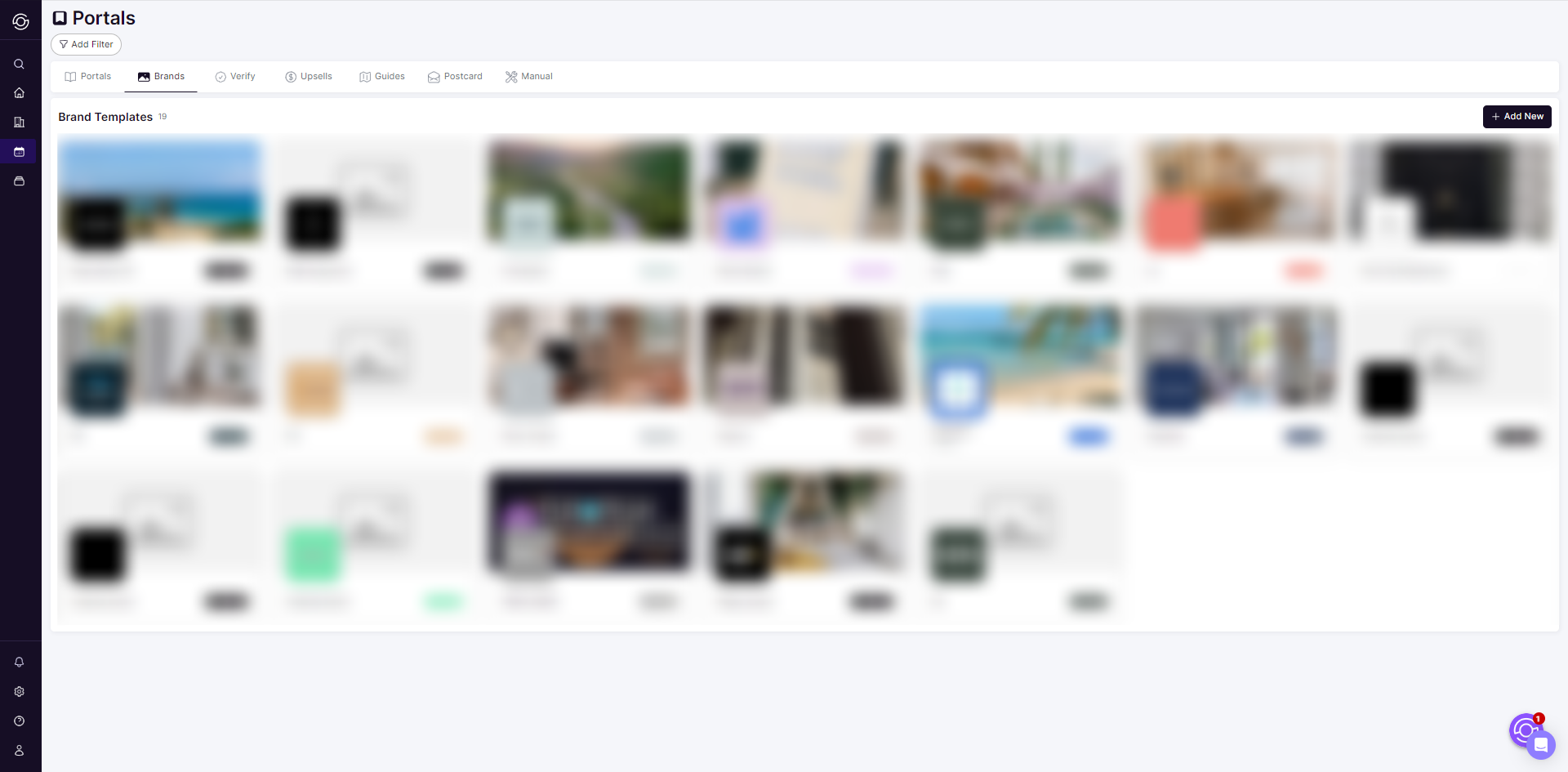
Navigate to the SuiteOp portal configuration page and select the “Brands” tab .
-
Click “Add New” then the edit pane will appear.
Step 2 - Configure the Brand
-
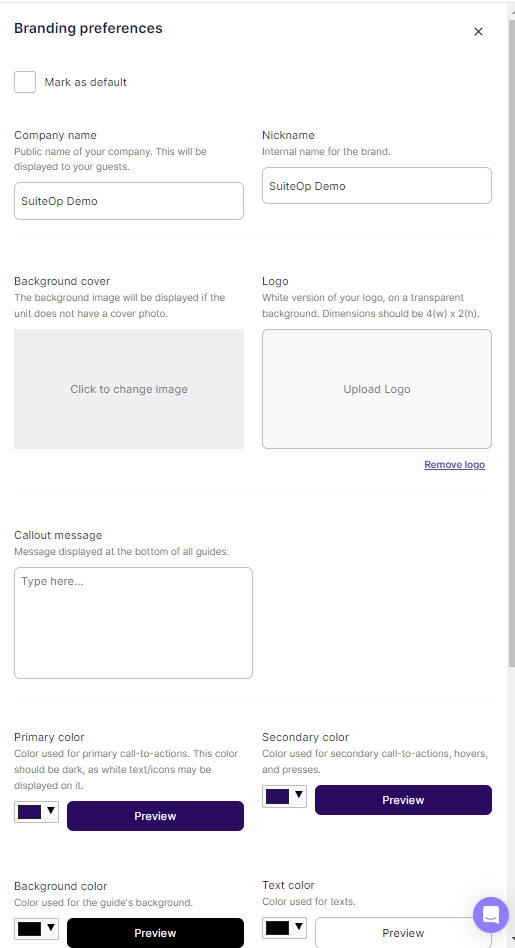
You can choose to set it as the default brand by checking the box. Then, input your Company Name, which will be displayed to your guests, and also create a nickname for your brand.
-
Upload a cover photo: This background image will be displayed if the unit doesn’t have a cover photo. Additionally, upload a white version of your logo.
-
Enter a call-out message that will be displayed at the bottom of all guides.
-
Customize the colors for your brand
-
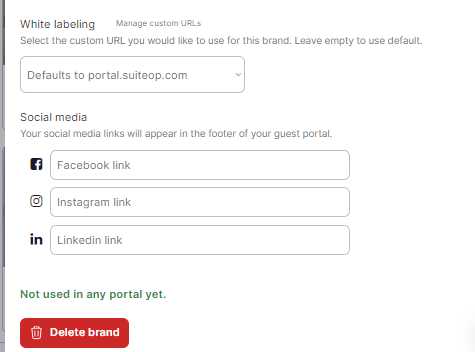
You can also set up your custom URL by going to your organization’s settings.
-
Enter your Social Media links that will be displayed in the footer of your guest portal.
Step 3 - Assign brand to a portal
-
Navigate back to the SuiteOp portal configuration page and select the “Portals” tab .
-
Open the portal template then select the default branding that will be applied to your guide.