Every guest portal will be specific to a user based on their reservation information and the property they are staying at. This means there is no singular preview portal. To see your guest portal in action you’ll need to view it from a reservation. You can create a test reservation, and then open the guest portal from the reservation details.
Create a test reservation
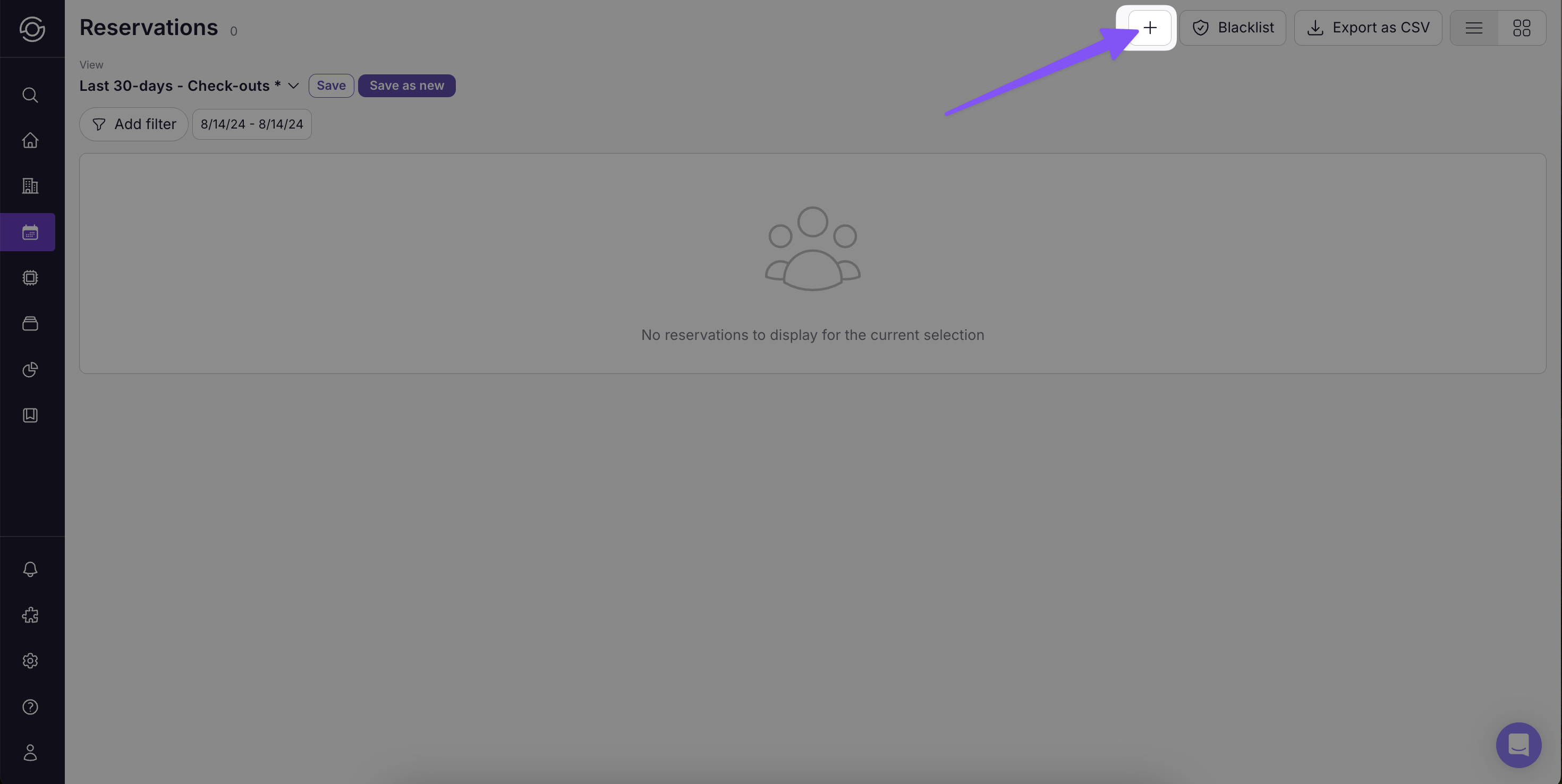
- Click the plus sign on the Reservations page
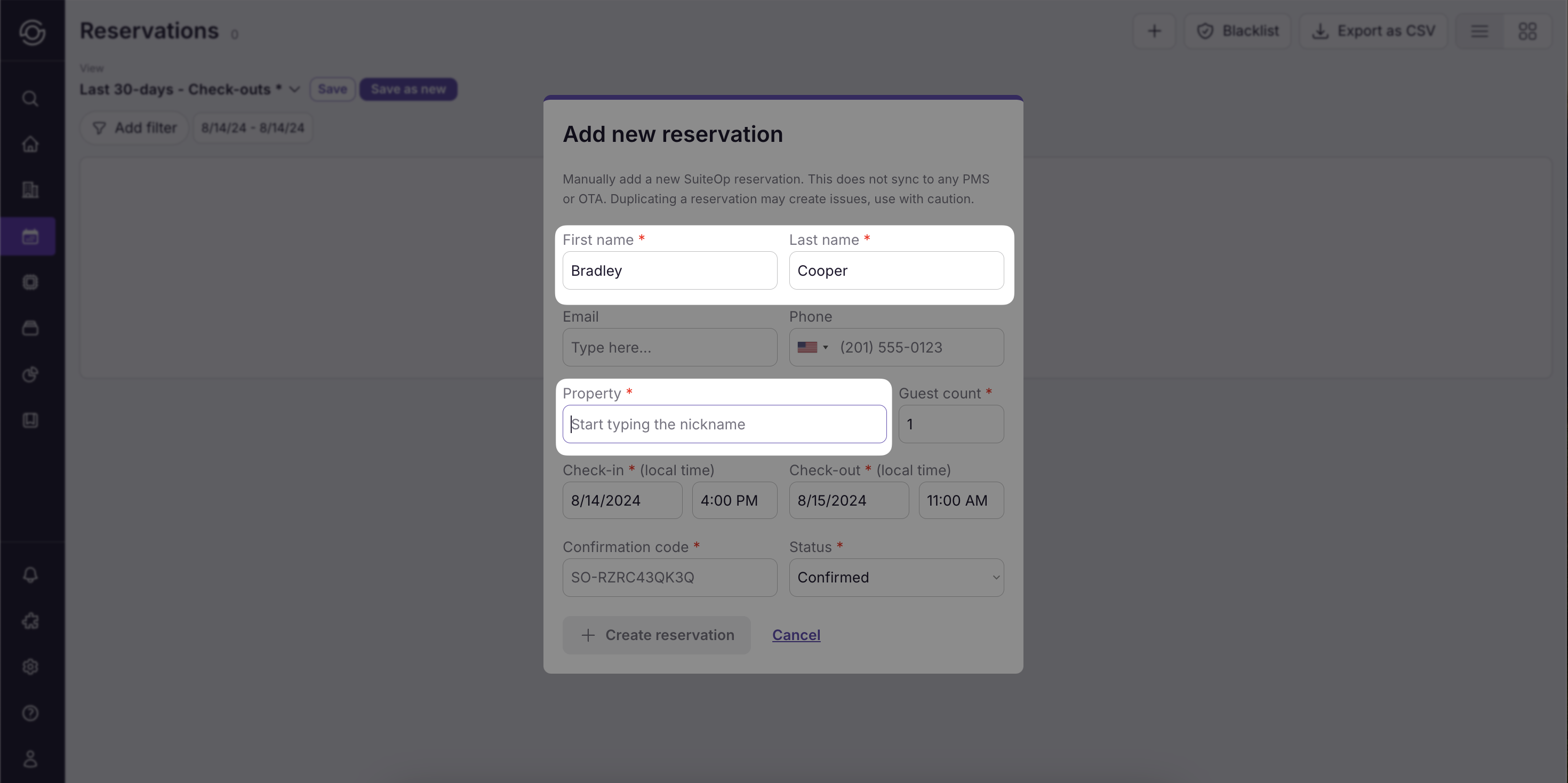
- Fill in the name and select a property attached to the Guest Portal you are trying to view
-
Click +Create reservation
-
Done! Your test reservation is created
Open a guest’s portal
Previewing the Guest Portal as a guest can be helpful while building the portal. You’ll be able to see how different elements display and adjust accordingly. You can view the Guest Portal by heading to the Reservations page and following the below steps.
-
Select an existing reservation for the property your Guest Portal is assigned to or your test reservation
-
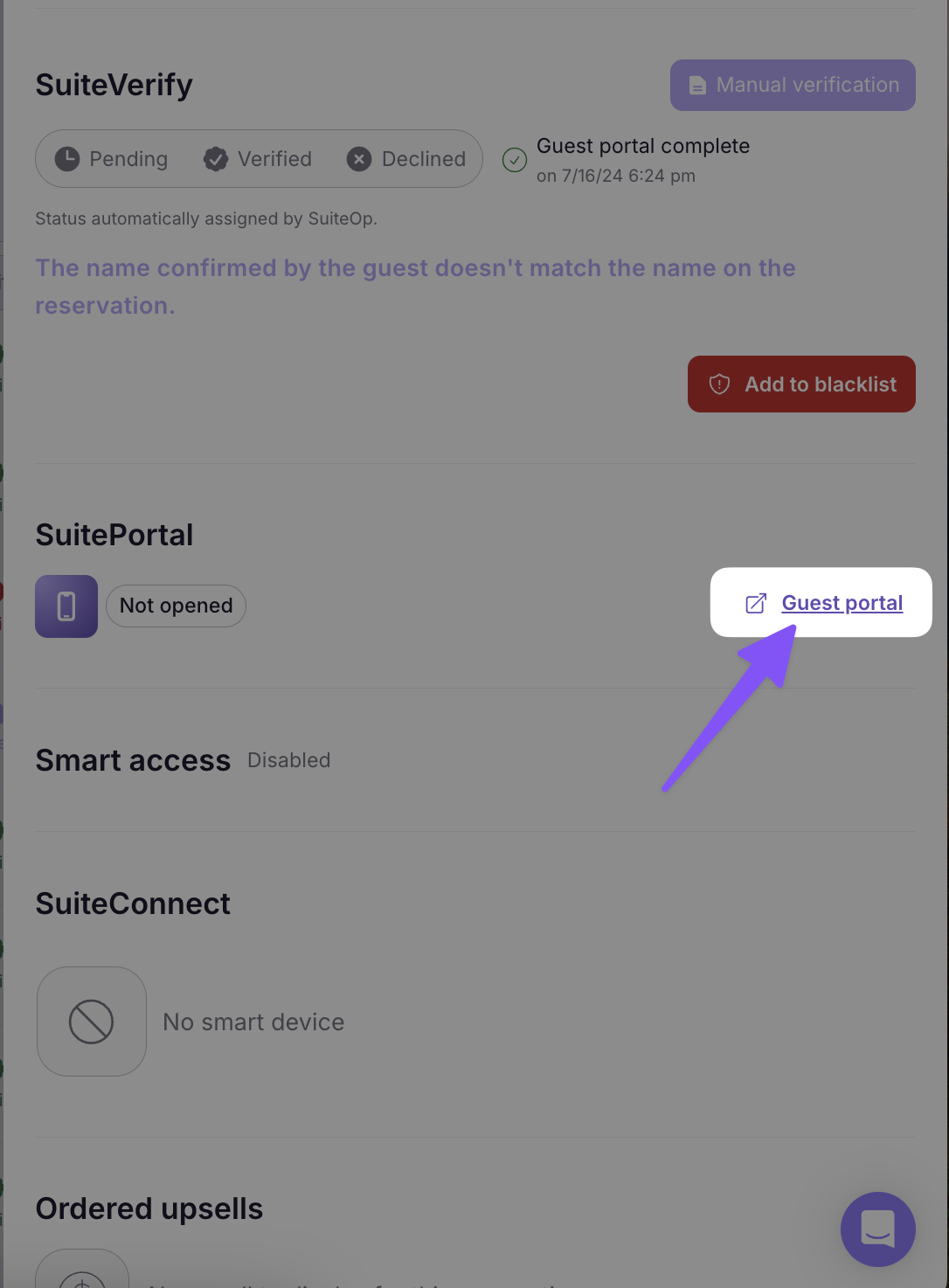
Scroll down to the SuitePortal section
-
Select Guest portal
- This will open your portal in the reservation panel, to open in a separate tab you can click the top button of the 3 at the bottom of the portal screen. (The clipboard icon will copy the portal URL for the guest reservation you are viewing)
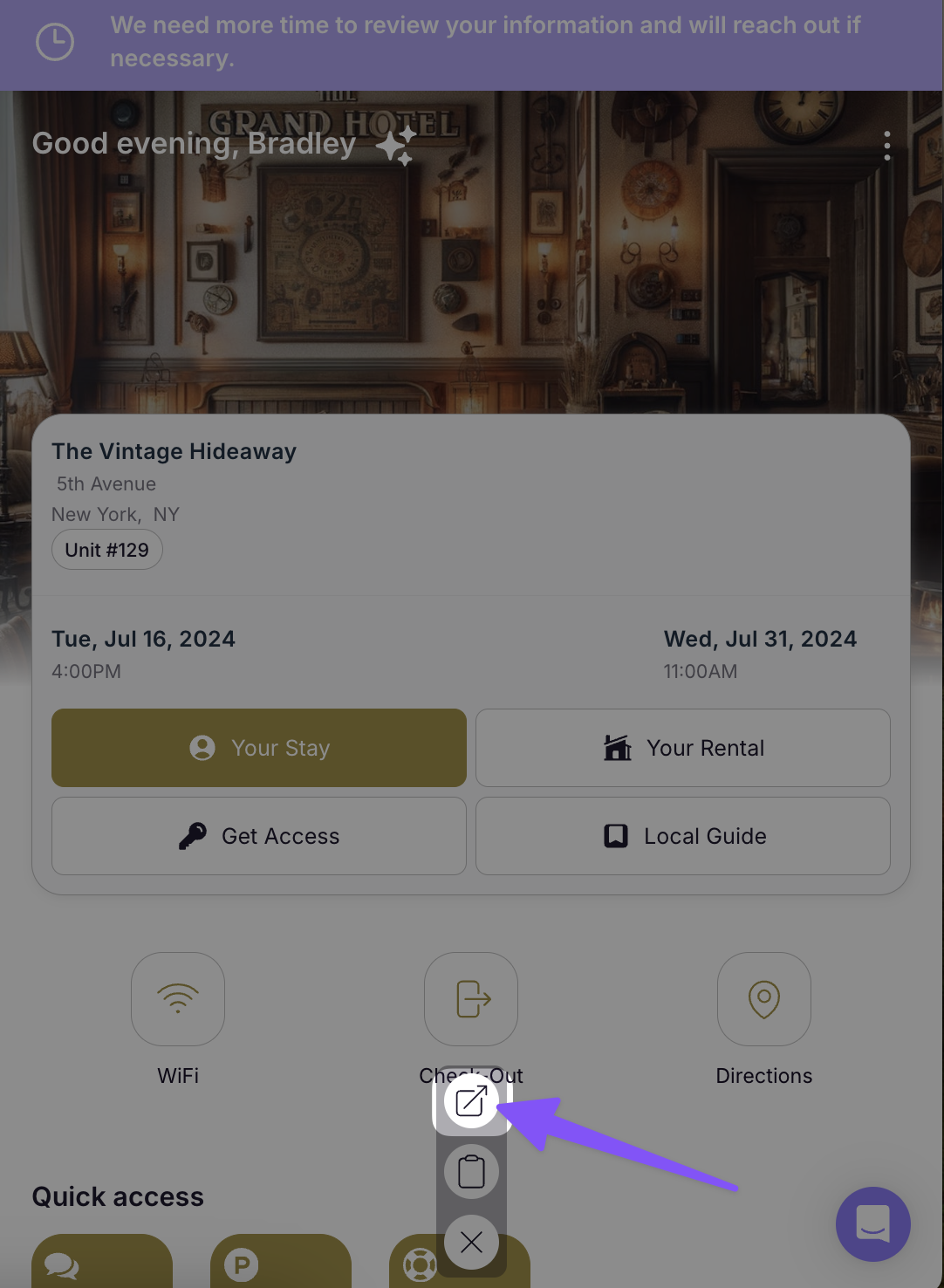
- Now you can explore the portal as if you are the guest!