We know your guests come from all over the globe, it’s important all guests are able to complete pre-check in and access the benefits of their Guest Portal. That’s why we offer nine language translation options (and always growing!) for every Guest Portal. See the steps below to enable new languages in your Portal.
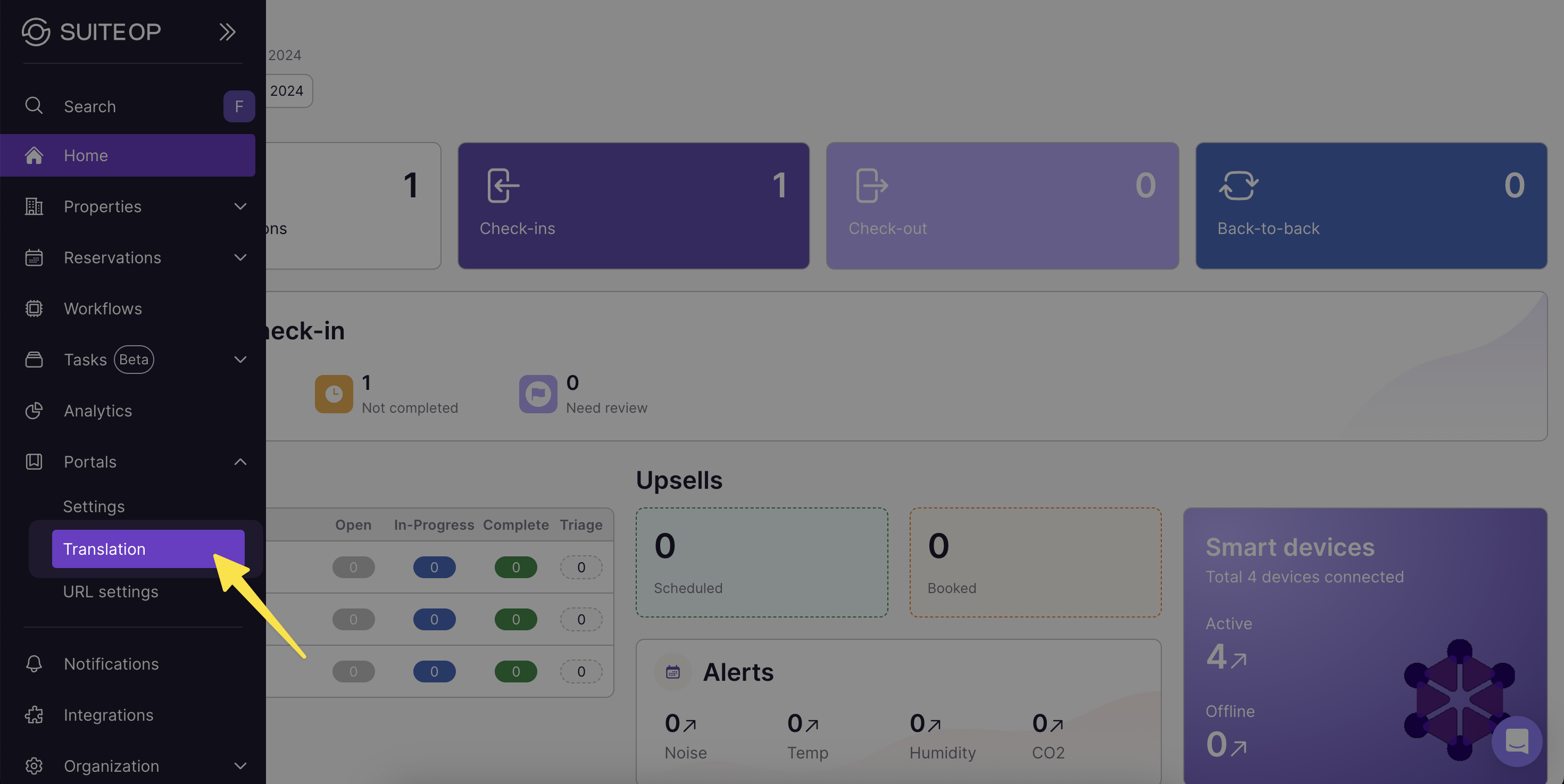
1. Go to Portals > Translation
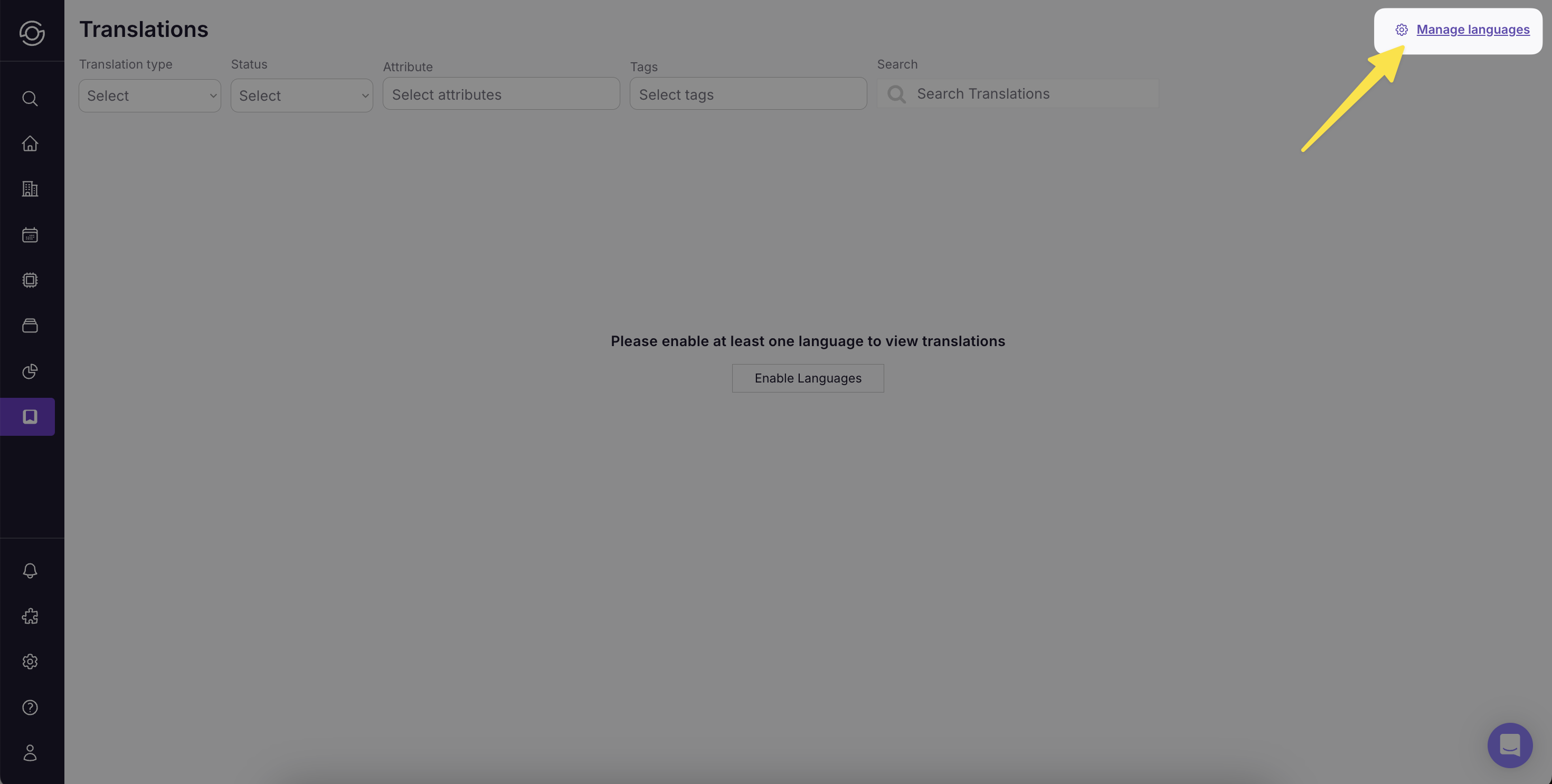
2. Select Manage Languages at the top right
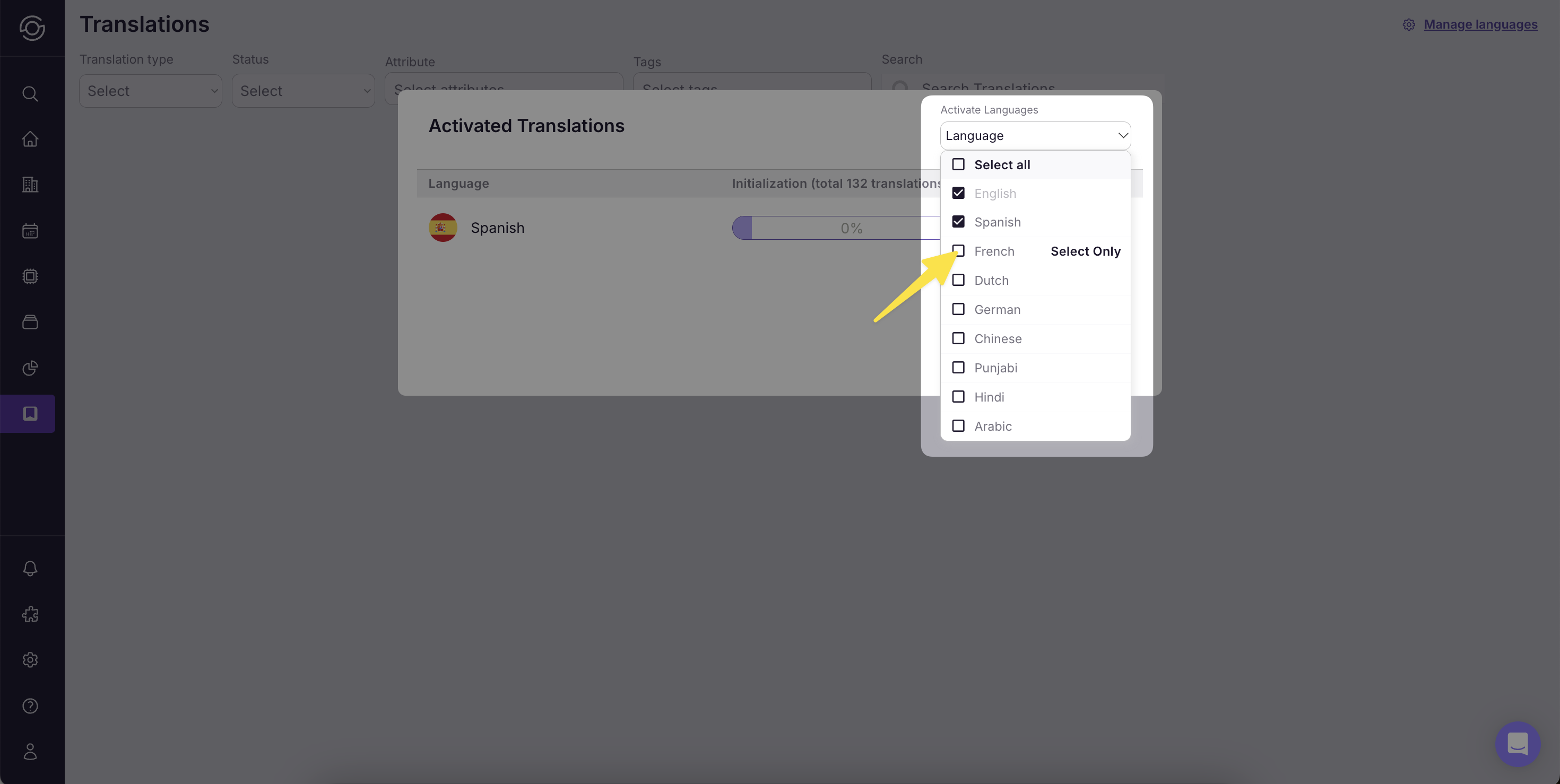
3. From the Language dropdown, check all languages you’d like to activate
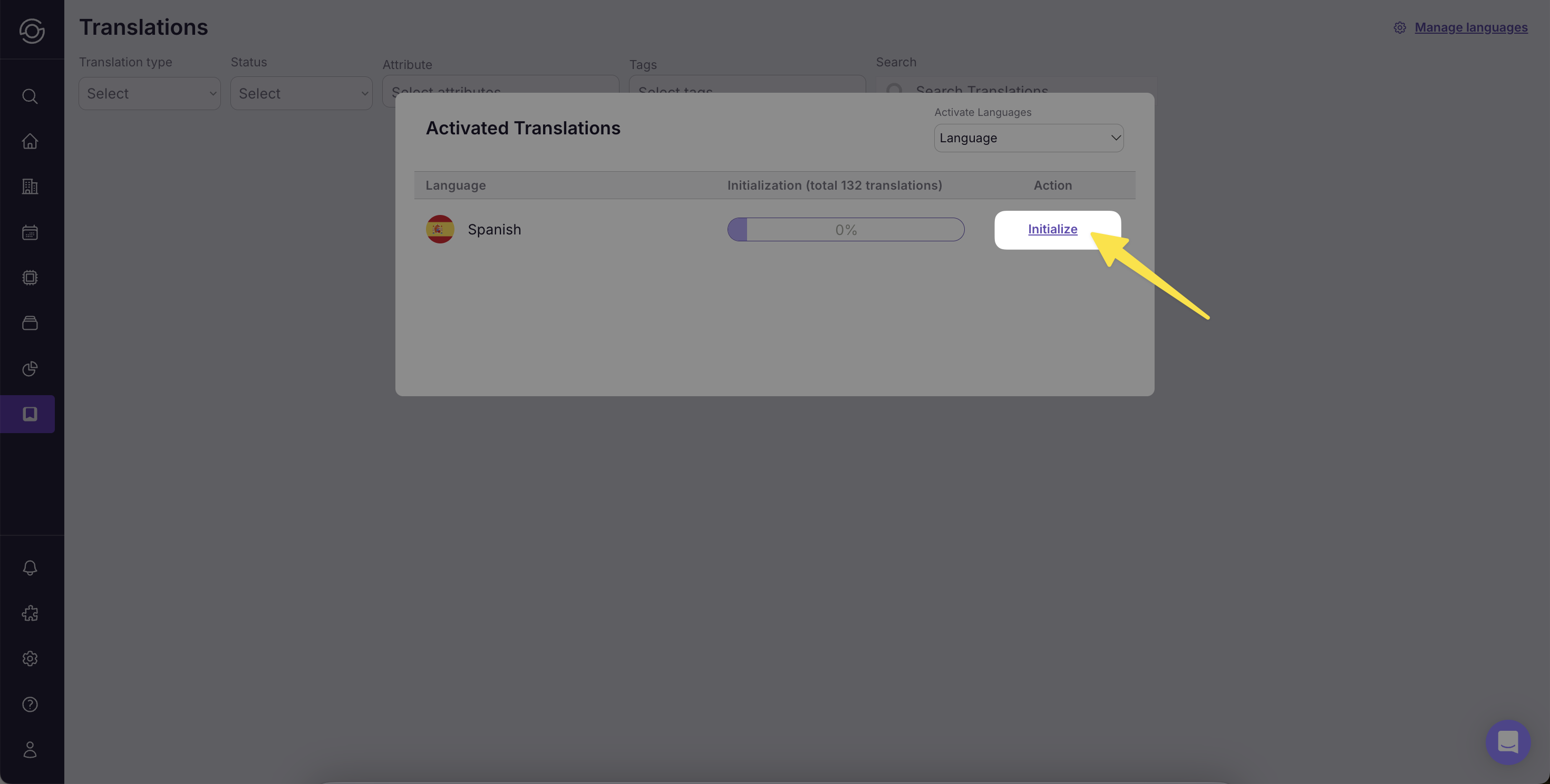
4. You will need to click the “Initialize” button the first time you add a new language, you will not need to do this again
5. Now that your languages are activated, you can assign them to your Portal
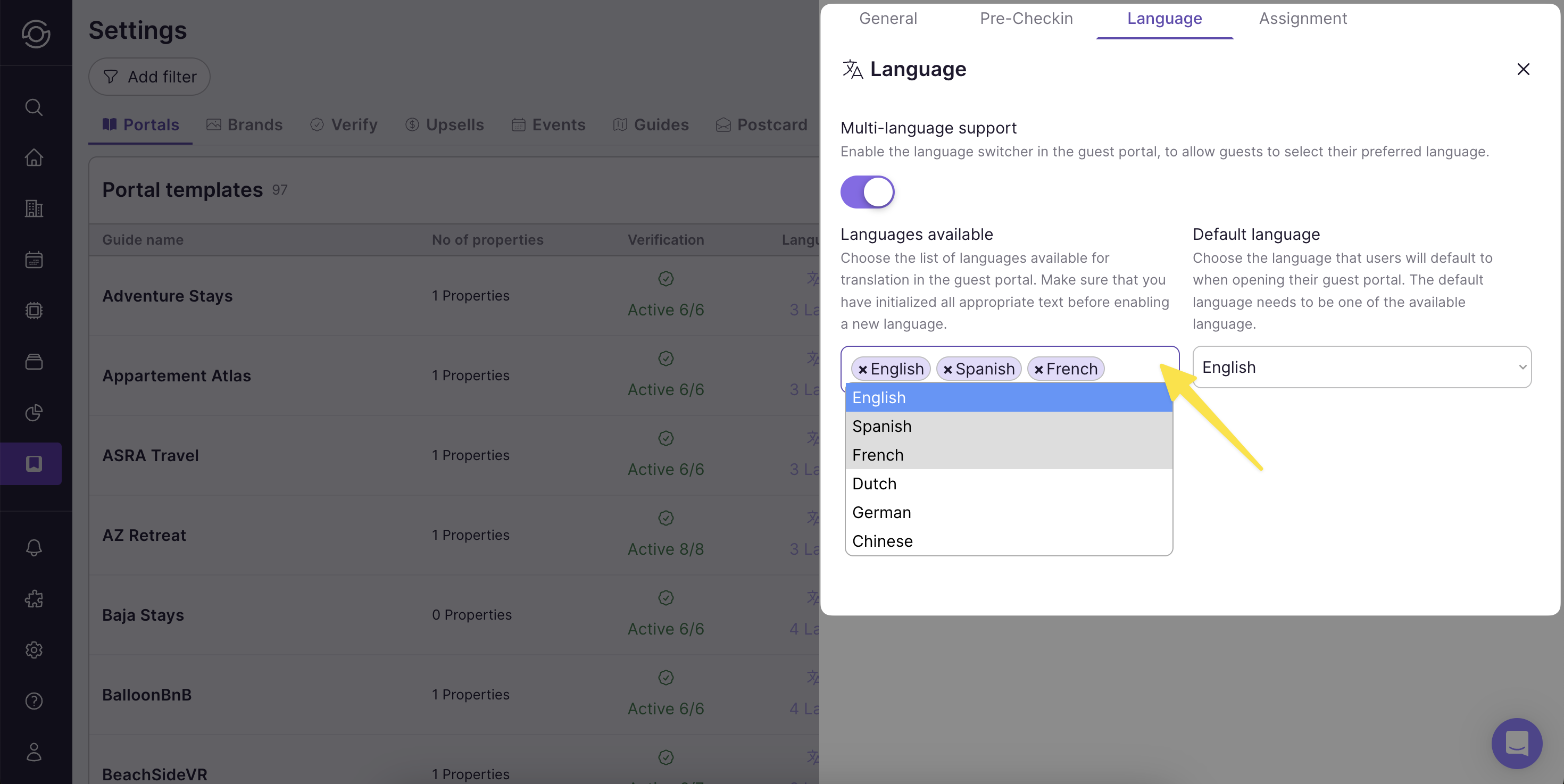
In the Portal template settings head to the Language tab. Click into the Languages available box to select additional languages. Ensure Multi-language support is switched on.
When saving any text in your Portal configuration press Save & Translate to enable translation for each element.
Last updated on