Upsells
You may want to extract upsell data from reservations to monitor completed transactions, assess compliance, and evaluate approval or rejection patterns.
To extract data from the upsells and view the most requested, approved, and pending upsells, follow these steps:
-
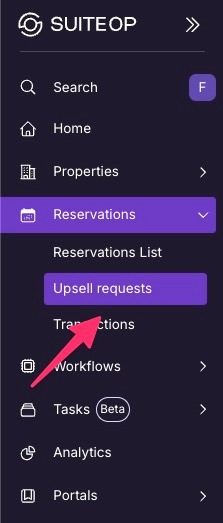
On SuiteOp, go to Reservations >** Upsells**
-
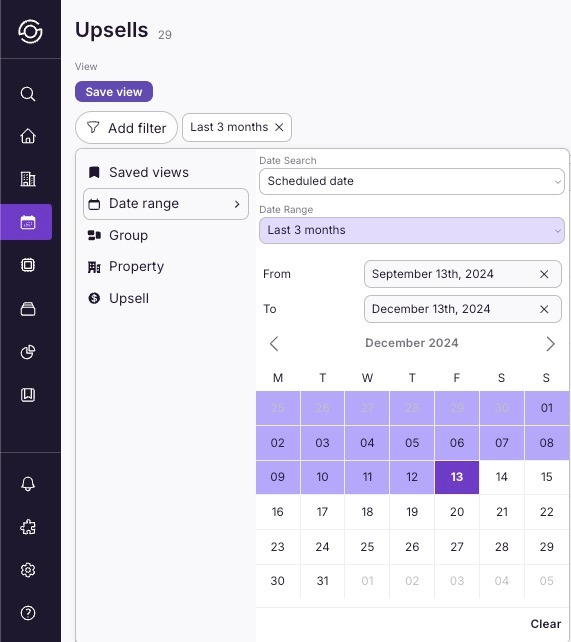
Once on the Upsells page, filter the dates for the data you want to extract. You can also filter by property to narrow down the data based on your selection.
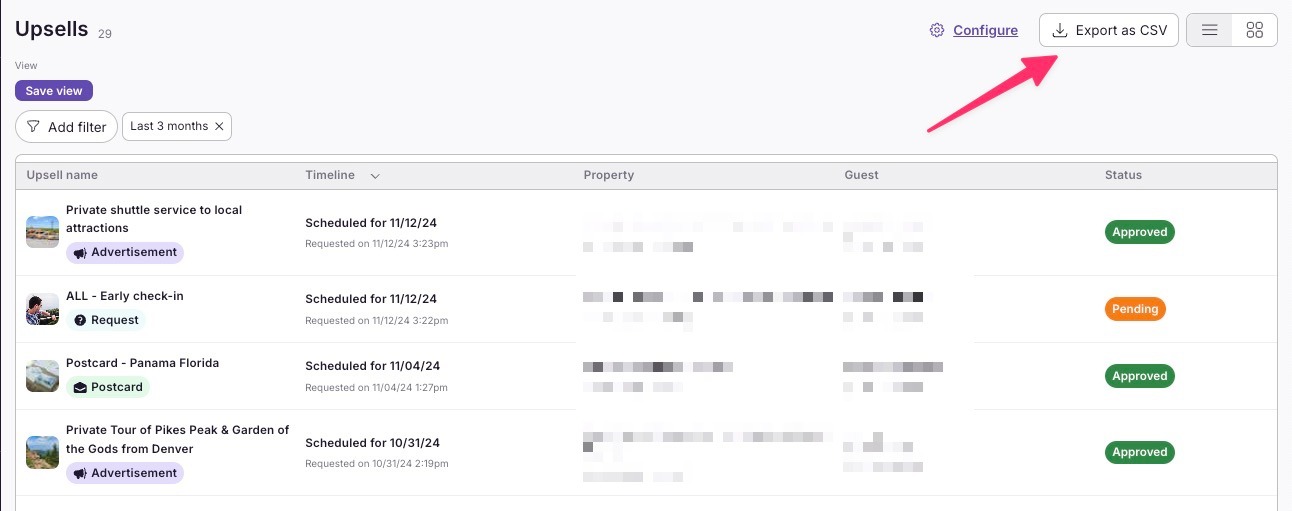
- You will see all the data on this page, along with the option to “Export as CSV” located in the upper right corner.
Transactions
You may want to extract the transaction status of reservations to track payments, monitor processing, and analyze approval or denial trends.
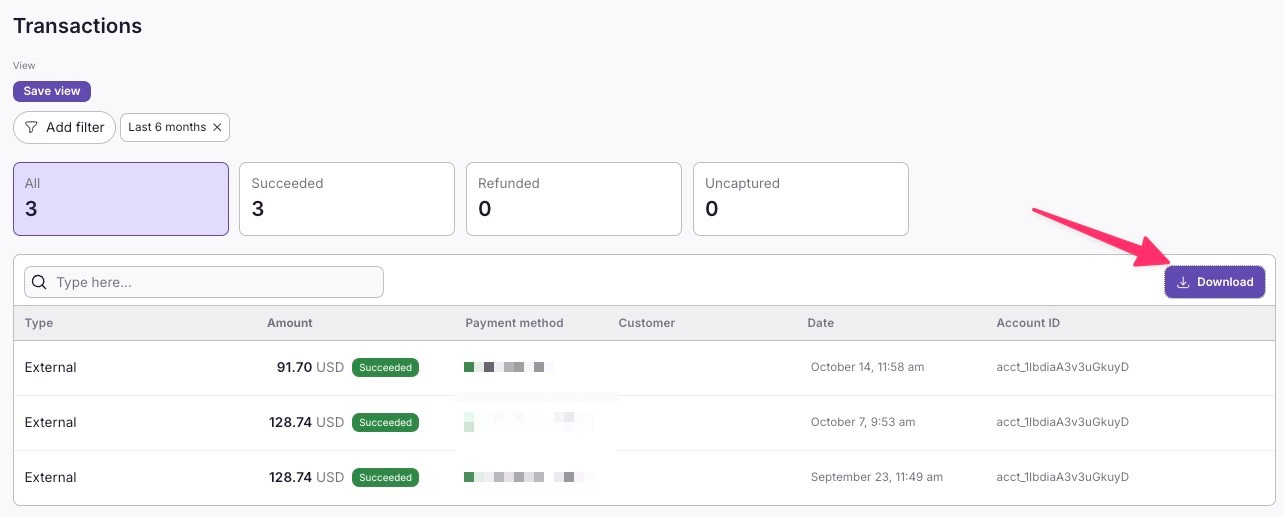
Just like with Upsells, the same steps apply for extracting Transactions data. The only difference is that instead of “Export as CSV,” you’ll see the** “Download”** option on the right-hand side after filtering the data you want to extract.
- On SuiteOp, go to Reservations >** Transactions**
- Once on the Transactions page, filter the dates for the data you want to extract. You can also filter by property to narrow down the data based on your selection.
Verification
You may want to extract the verification status of reservations to keep track of verified bookings, ensure compliance with requirements, and analyze approval or rejection trends.
If you would like to extract the verification status data for reservations:
-
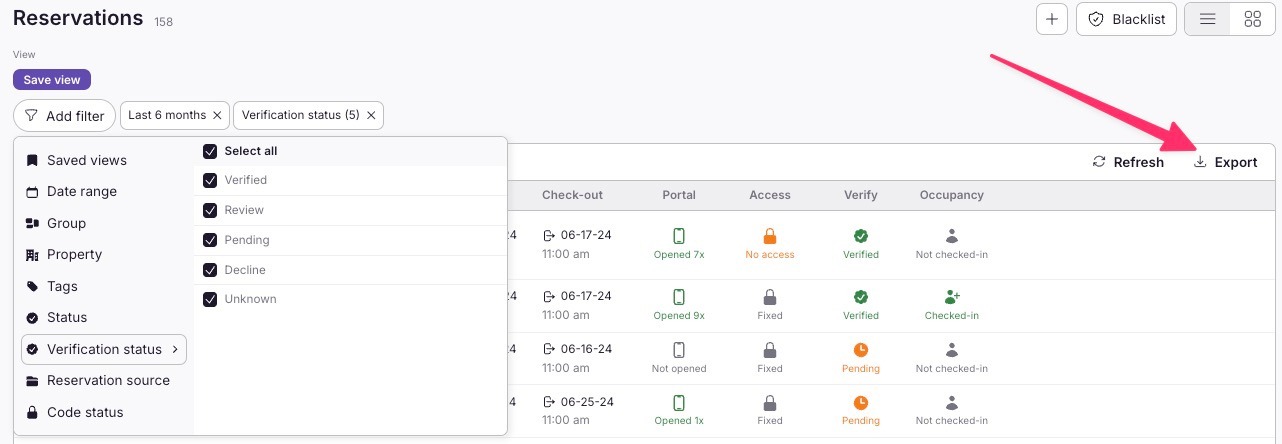
Go to Reservations > Reservations List.
-
Filter by dates, status, or other criteria based on the data you want to view.
-
Click Export on the right-hand side to download your data.
Reviews
You may need to export reviews as it helps streamline the analysis of guest experiences, providing valuable insights for improving service and identifying areas for improvement.
This makes it easier to analyze guest experiences and gather valuable feedback.
-
Go to Analytics
-
Then the Reviews tab
-
Filter by dates, property, or other criteria based on the data you want to include.
-
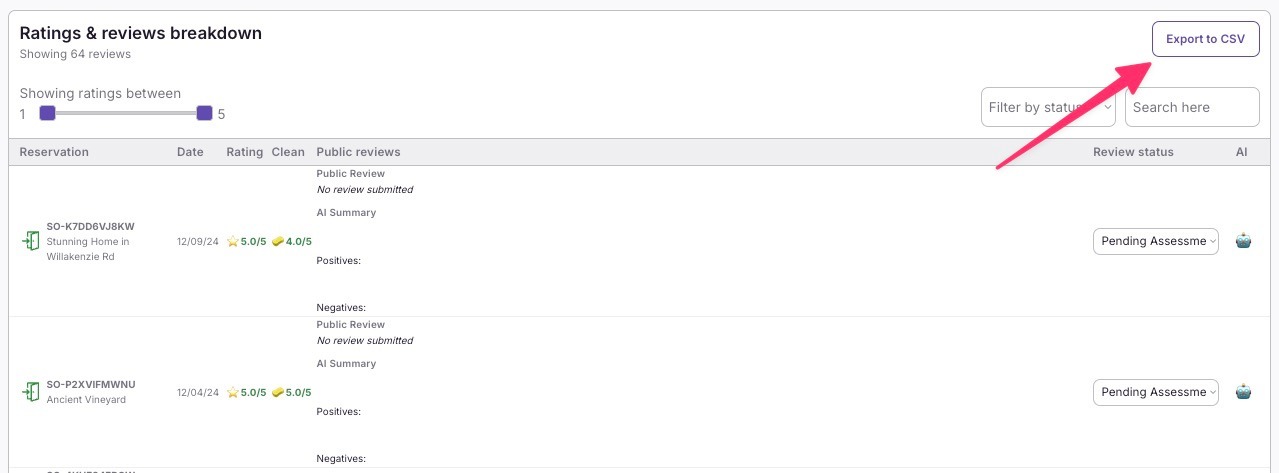
Scroll down to view the Ratings & Reviews Breakdown. From this page, you can quickly glance at the feedback left by guests on the portal. Use the Export option to download the data into a spreadsheet for further review.
Tasks
This feature allows you to export task data to help track progress, review completed and pending tasks, and ensure timely follow-up on any outstanding items.
-
To view this go to Tasks >** Tasks Schedule**
-
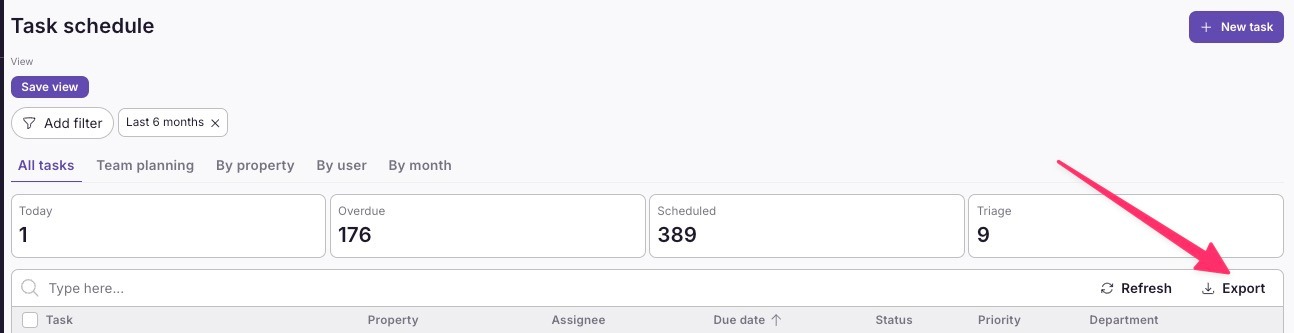
Filter by dates, status, or other criteria to narrow down the data you want to view. Once your filters are applied, you’ll see a preview of the data, including tasks, property, assignee, due date, status, priority, and department.
-
Use the Export option to download the data into a spreadsheet for further review.
Blacklist
To review and extract the names of guests you’ve blacklisted, helping you monitor any restricted individuals, track reasons for blacklisting, and maintain guest records for future reference.
-
Go to Reservations.
-
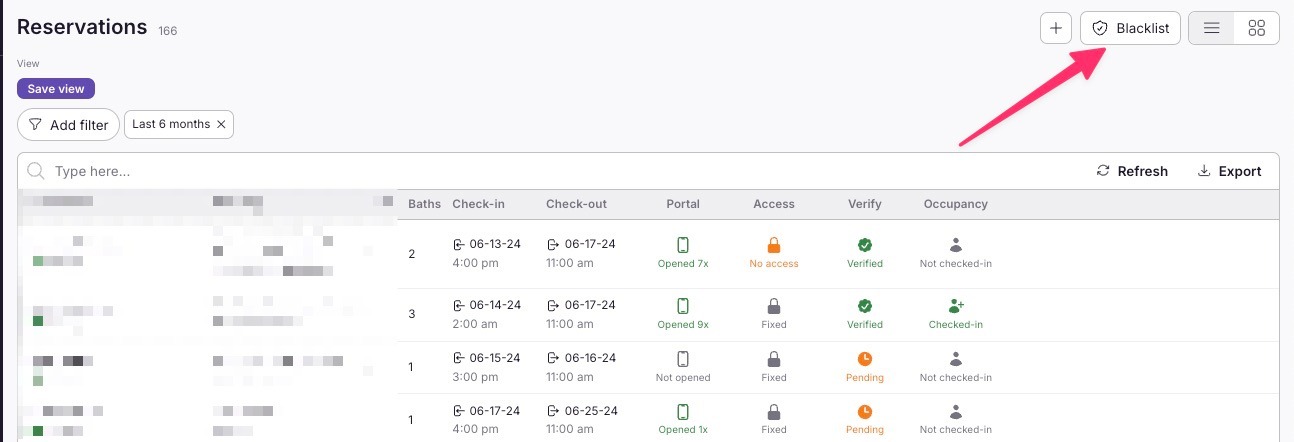
Click on Blacklist in the upper right-hand side.
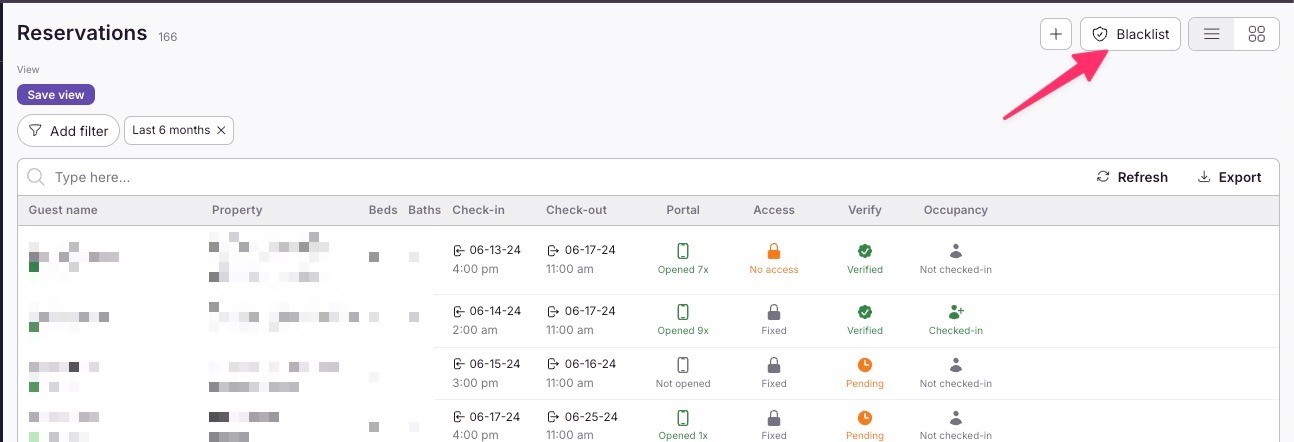
- Once clicked, you’ll see a list of all guests you’ve blacklisted, along with the reason why each guest was blacklisted.
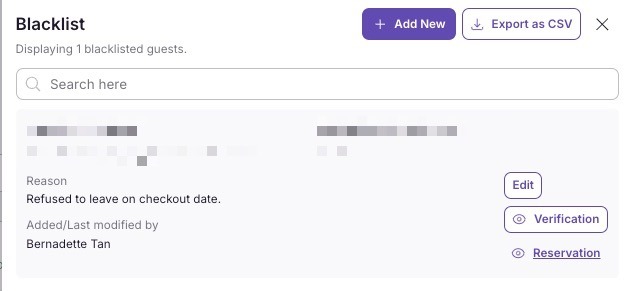
- You’ll also have the option to Export to CSV for further review outside the portal.